Your contact form says “Thank you, your message has been sent.” The visitor leaves happy. Nothing ever reaches you.
This is one of the most expensive small problems on a business website, because it is silent. A broken page gets noticed. Missing leads just look like a quiet month. The same fault also hits WooCommerce order emails, password resets and new user notifications.
Why it happens
By default, WordPress sends email through your web server. That worked well years ago. Today, Gmail, Outlook and the rest look hard at who is sending, and a message from a shared web server claiming to be from your domain often looks suspicious. It lands in spam or gets dropped entirely, and nobody tells you.
Some hosts also limit or block outgoing mail from the server to fight spam.
So the form usually is not broken. The delivery is.
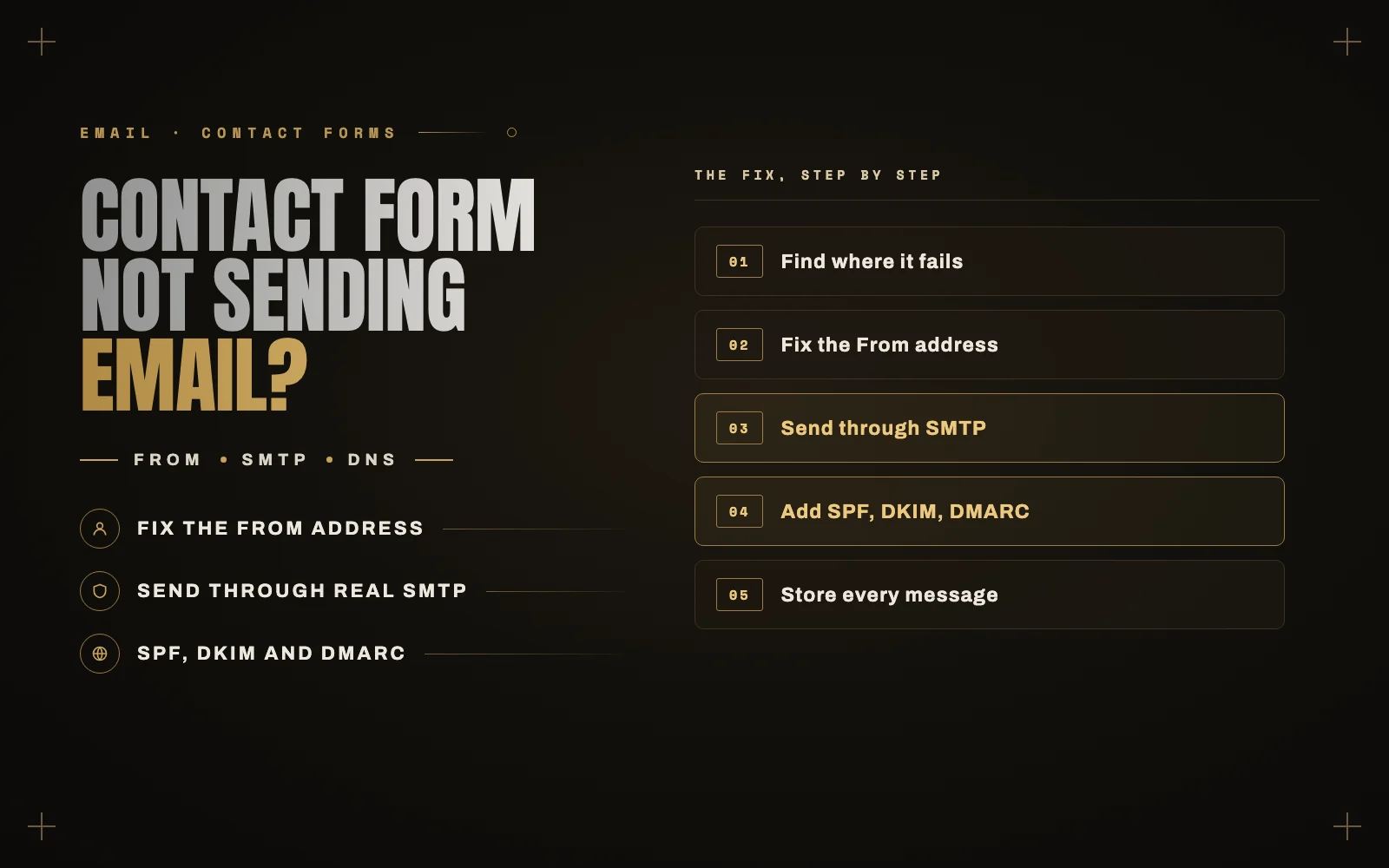
Step 1: confirm where it is failing
Before you change anything, narrow it down:
- Submit your own form, then check the spam folder of the receiving inbox.
- Trigger a different WordPress email, such as a password reset for your account. If that fails as well, the problem is site-wide email. If only the form fails, it is the form’s settings.
- Check the form’s notification settings. Look at the “To” address, in case it still points at a former employee or an old inbox.
Step 2: fix the From address
This one setting catches a lot of people. Many forms are set to send from the visitor’s address, so that replies go straight to them. When your server sends a message claiming to be from someone@gmail.com, it is effectively forging that address, and mail providers treat it that way.
Set the From address to one on your own domain, such as website@yourdomain.com. Put the visitor’s email in the Reply-To field. You can still hit Reply and reach them.
Step 3: send through real email with SMTP
This is the real fix. Rather than sending from the web server, have WordPress log in to a proper mail service and send through that. Your mail then comes from a server that is allowed to send it.
Install an SMTP plugin such as WP Mail SMTP or FluentSMTP, then connect one of these:
- Your business email, such as Google Workspace or Microsoft 365. It is fine for a small site’s volume.
- A transactional email service, such as Brevo, Postmark, Mailgun or Amazon SES. This is the better option for stores, or anything that sends a lot.
- Your host’s mailbox, which is the simplest, and it works if the mailbox is on your domain.
Send the plugin’s test email, and make sure it arrives in the inbox and not in spam.
Step 4: set up SPF, DKIM and DMARC
These are DNS records that prove a service may send mail for your domain. Without them, even SMTP mail can land in spam.
- SPF lists who may send mail for your domain.
- DKIM adds a signature that shows the message was not altered.
- DMARC tells receiving servers what to do with mail that fails those checks.
Your email service gives you the exact records to add at your DNS provider. A domain should have only one SPF record, so add new senders to the existing one rather than creating a second. It takes a few minutes, and it also protects your domain from being spoofed.
Step 5: keep a copy of every message
Even a perfect setup can fail one day, for instance if someone changes a password or a DNS record. So store submissions on the site as well as emailing them. Most form plugins can do it, and Contact Form 7 has the free Flamingo add-on. If email fails, you still have the lead.
Spam filters inside the form can also block genuine messages without saying so. If you use reCAPTCHA or a similar tool, check whether real messages are being marked as spam in the stored entries.
If WooCommerce emails are the problem
The same SMTP setup fixes most missing order emails. If some still do not send, look at WooCommerce, Settings, Emails and confirm each email is enabled. Then look at the order notes. If orders are stuck on “pending payment”, WooCommerce will not send the “processing” email, and in that case the problem is the payment gateway, not your email.
Make sure you hear about it next time
This fault tends to come back without warning, which is why a one-time test is not enough. Two habits help:
- Submit your own form once a month.
- Use something that watches for failures. My free plugin iDownAlert alerts you to emails your site fails to send, and it has its own SMTP connection and Telegram backup, so the warning does not depend on the mail setup that just broke.
If you would rather hand this over, sorting out email delivery is exactly the kind of fix my WordPress maintenance plans include. Tell me what is going wrong and I will take a look.