Share buttons look like the simplest thing on a blog. A row of icons at the end of a post. But the way most of them are built costs you speed, privacy and, ironically, shares.
I recently launched iShareBlog, a free share plugin, because I could not find one that did this right. This post covers what I learned building it, so you can choose well whichever plugin you use.
The hidden cost of most share buttons
Many share plugins, and the official buttons from the social networks themselves, load JavaScript from Facebook, X, LinkedIn and others on every page. Each script:
- Adds weight and requests, which hurts your Core Web Vitals and mobile speed. I saw how much small things like this add up when I fixed Core Web Vitals on my own site.
- Lets those networks track your readers, whether they click or not. Depending on where your readers live, that can mean you need cookie consent just for share buttons.
- Can break when a network changes its code, which happens often.
A share button does not need any of that. It can be a plain link that opens the network’s share page with your post’s address filled in. Nothing loads until a reader clicks.
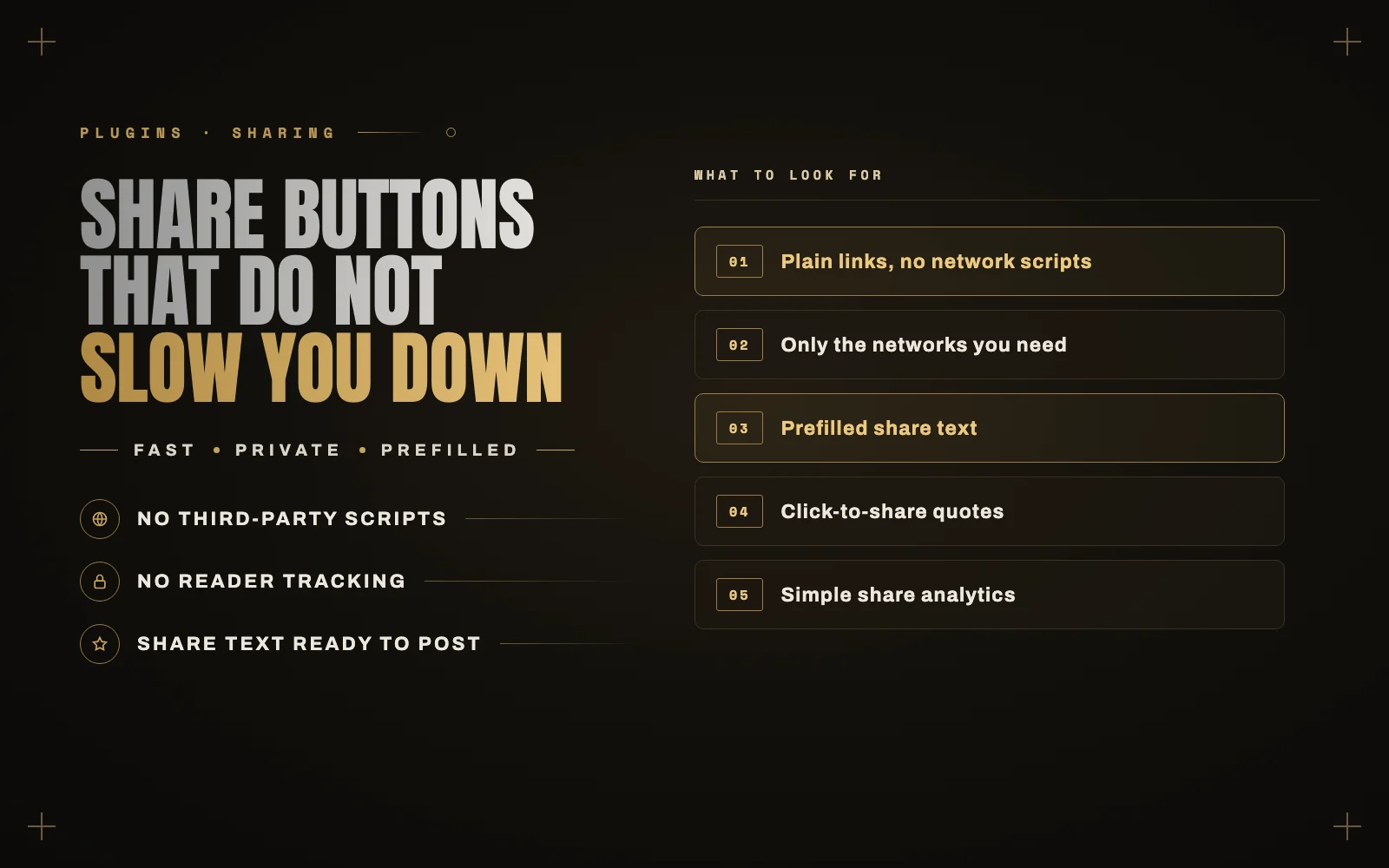
What to look for in a share plugin
- No third-party scripts. Check by viewing your page source after installing, or ask the developer.
- The networks your readers use. For B2B that is LinkedIn and email. For a local audience it is often WhatsApp and Facebook. Showing ten icons is worse than showing the four that matter.
- Prefilled share text. Most buttons open an empty box, and the reader has to think of something to say. Many give up. A short summary already written makes sharing a single click.
- Mobile behavior. Buttons should be easy to tap, and WhatsApp and Telegram matter far more on phones.
- Some idea of what works. Basic counts per post and per network tell you which content people actually pass on.
Where to put the buttons
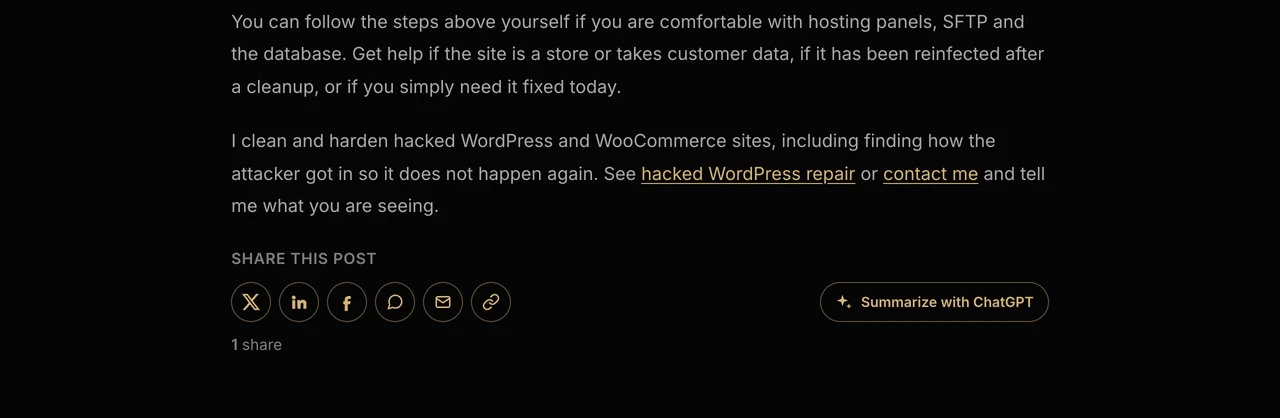
- At the end of the post is the most useful spot. A reader who finished the post is the one most likely to share it.
- At the start as well, for long posts where people share after skimming.
- Not floating over the content on mobile. A sticky bar that covers text annoys more readers than it converts.
- Inside the content, as quotes. A strong sentence with a “share this” link gets shared far more than a generic button, because the reader gets something specific to post.
Setting it up with iShareBlog
Here is how to set it up with iShareBlog, which follows all of the above. It is free on WordPress.org and needs WordPress 6.4 or later.
1. Install it
In your dashboard go to Plugins, Add New, search for iShareBlog, then install and activate it.
2. Choose networks and placement
Go to iShareBlog, Settings. Pick your networks from X, Facebook, LinkedIn, WhatsApp, Telegram, Reddit, Pinterest, email and copy link. Then choose whether the buttons go before posts, after posts, or both. The default style is outlined and icon only, and it picks up your theme’s main color automatically, so it usually looks right without any CSS.
Want buttons somewhere else? Set the position to “Don’t insert automatically” and use the shortcode anywhere: .
3. Check the share text
Open any post in the editor and find the Social Posts box. It drafts a post for X, LinkedIn, Facebook and Instagram, and those drafts are what readers see prefilled when they click share. Edit them if you like and update the post.
If you are on WordPress 7.0 or later and have an AI provider set up in Settings, Connectors, turn on “Use AI” in the iShareBlog settings and it will write these drafts for you from the post’s content.
4. Add a shareable quote
In the block editor, add the Shareable Quote block and type a sentence worth sharing. In the classic editor, use Your quote
5. Consider “Summarize with ChatGPT”
This button opens ChatGPT with a prompt asking for an overview and key takeaways of your post. Claude and Perplexity versions are available too. More and more readers use assistants to digest long articles, and this keeps your page as the source.
6. Watch what gets shared
iShareBlog, Analytics shows total shares, shares per day, your top networks and posts, and whether shares came from buttons, quotes or highlighted text. It records only the post, the network, where the click came from and the time. Visitor IP addresses are never stored.
A note on share counts
Showing “0 shares” on a new post discourages sharing. If your posts are new or your audience is small, hide the count until the numbers help you rather than hurt you.
Try it
You can see iShareBlog working on this post: scroll to the end, or highlight a sentence. If it helps your blog, a review on WordPress.org means a lot.
If you need something more specific built around your content, sharing or publishing workflow, that is what I do in custom WordPress plugin development. Tell me what you have in mind.