Elementor site slow? How to speed it up without a rebuild
Elementor gets blamed for a lot of slow websites, and usually it is not Elementor's fault alone. Here is how I speed up Elementor sites without rebuilding them, in the order I actually do it.
I work with Elementor almost every day, and I hear the same thing from site owners all the time: “Elementor is slow, should we rebuild in something else?”
Usually, no. Elementor adds some weight, but most slow Elementor sites I see are slow for reasons that have little to do with Elementor itself: too many addon plugins, old layouts, heavy fonts and icons, and hosting without proper caching. All of that can be fixed on the site you already have.
Here is the process I follow, in order.
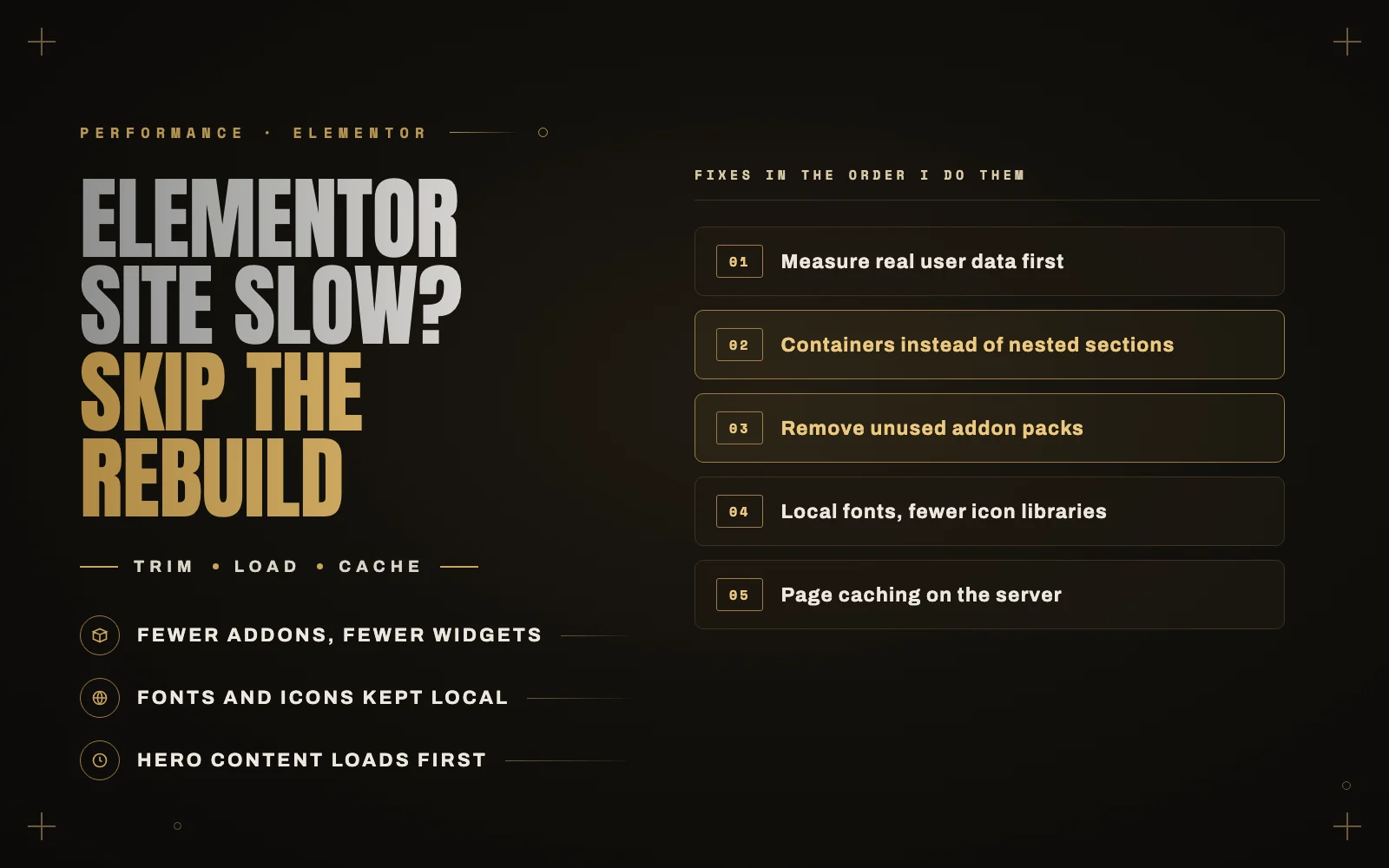
1. Measure before you change anything
Run the homepage and one or two of your most important pages through PageSpeed Insights, on mobile, a few times. Look at two things:
- Field data, the section based on real visitors, if your site has enough traffic to show it. This is what Google actually uses.
- The LCP element it names, the biggest thing on screen, and how long it takes.
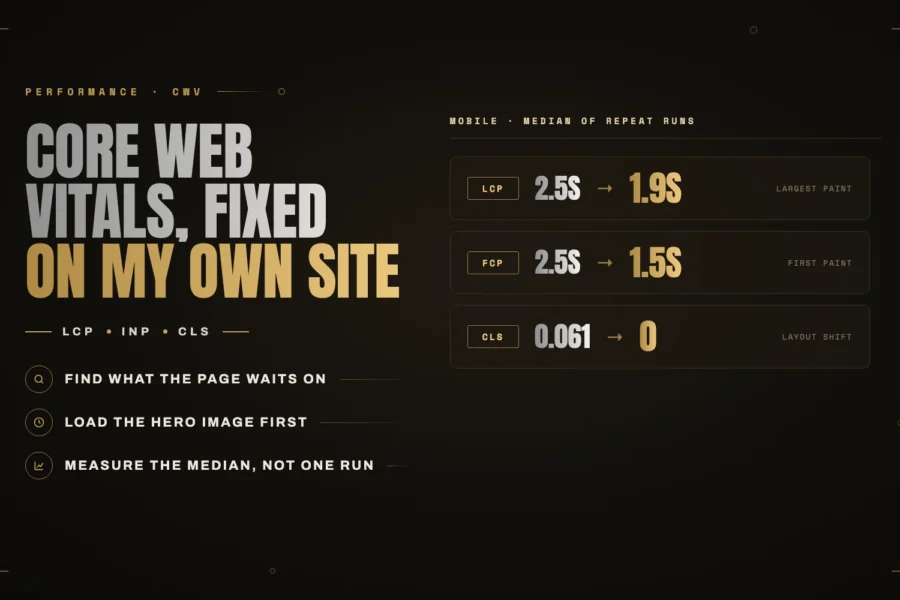
Write the numbers down. Without a baseline you cannot tell which fixes helped, and some popular “speed tips” make things worse. I explain why I always use several runs, not one, in my Core Web Vitals case study.
2. Replace nested sections with containers
Older Elementor layouts are built from sections, columns and inner sections, and every level adds extra HTML wrapping around your content. A page with a few hundred elements can end up with thousands of nested HTML nodes, which makes it slower to download, slower to render and slower to respond to taps.
Elementor’s Flexbox containers do the same job with far fewer wrappers. Elementor includes a tool to convert old sections to containers, but check each converted page carefully before publishing, especially on mobile. On a site with many pages I convert the templates and the most visited pages first.
3. Remove addon packs you barely use
This is the biggest win on most sites I audit.
Addon packs add dozens of extra widgets, and many of them load their CSS and JavaScript on every page, whether a widget is used there or not. It is common to find two or three overlapping packs installed for one widget each.
Go through the addon plugins and ask which widgets are actually used, and where. Often one well chosen pack, or a small piece of custom code, can replace several. Many packs also have a setting to switch off unused widgets, which helps even if you keep them.
4. Check Elementor’s own performance settings
Elementor has added a number of performance features over the years, such as loading assets only when a widget is used and lighter output. Some are on by default only for new sites, so older sites often miss out.
Look through Elementor’s Settings and Features screens. The exact names change between versions, so test each one on a staging copy first, then check your key pages before switching it on live.
5. Fonts and icons
Elementor makes it very easy to use many Google Fonts and weights, and every one is another file to download.
- Use two font families at most, and only the weights you need.
- Load fonts from your own server rather than from Google. Recent versions of Elementor can do this from its settings. Self-hosting fonts made a visible difference on my own site.
- Watch the icon libraries. Full icon sets can be large. If you only use a handful of icons, Elementor’s option to inline icons, or simple SVGs, is much lighter.
6. Make the hero load first
The top of the page is where speed is won or lost.
- Do not lazy-load the main hero image. Lazy loading is for images further down the page. On the hero, it delays exactly the thing visitors see first.
- Avoid sliders and background videos in the hero. They are heavy and rarely improve conversions. One strong, well compressed image is almost always faster and clearer.
- Size images properly. A 4000-pixel photo shown 1200 pixels wide is wasted download time on every visit. Use modern formats like WebP.
- Go easy on entrance animations. Content that fades in after a delay looks slower than it is, and can push back when the page counts as loaded.
7. Caching and hosting
No amount of front-end work fixes a slow server. Elementor pages are built from data in the database, so without page caching, every visit rebuilds the page from scratch.
Make sure you have proper page caching, from your host or a good caching plugin, and object caching such as Redis if your host offers it. Then clear the cache after changes and check the pages again. For WooCommerce stores, the cart and checkout must be excluded from page caching, which good caching setups handle for you.
Elementor is rarely the whole problem. It is usually the twelve things installed alongside it.
When a rebuild does make sense
Sometimes it is the right call: when the site is years old with layouts nobody understands, when it relies on abandoned plugins, or when you are redesigning anyway. Even then, a rebuild in Elementor with containers and a lean setup can be very fast. The tool matters less than how it is used.
Get your Elementor site fast
I build and optimize Elementor sites for businesses, and I can usually tell within an hour what is slowing yours down. See my services or send me your site for a performance review.