Most site owners find out their WordPress site is broken from a customer. Someone sends a screenshot of a white page, or “Error establishing a database connection”, and by then it may have been down for hours. On a Friday night, it may have been down all weekend.
I built iDownAlert so the first person to know is you. It went live in the WordPress.org plugin directory this week, version 1.0.0, and it is free.
The problem with alerts that live inside WordPress
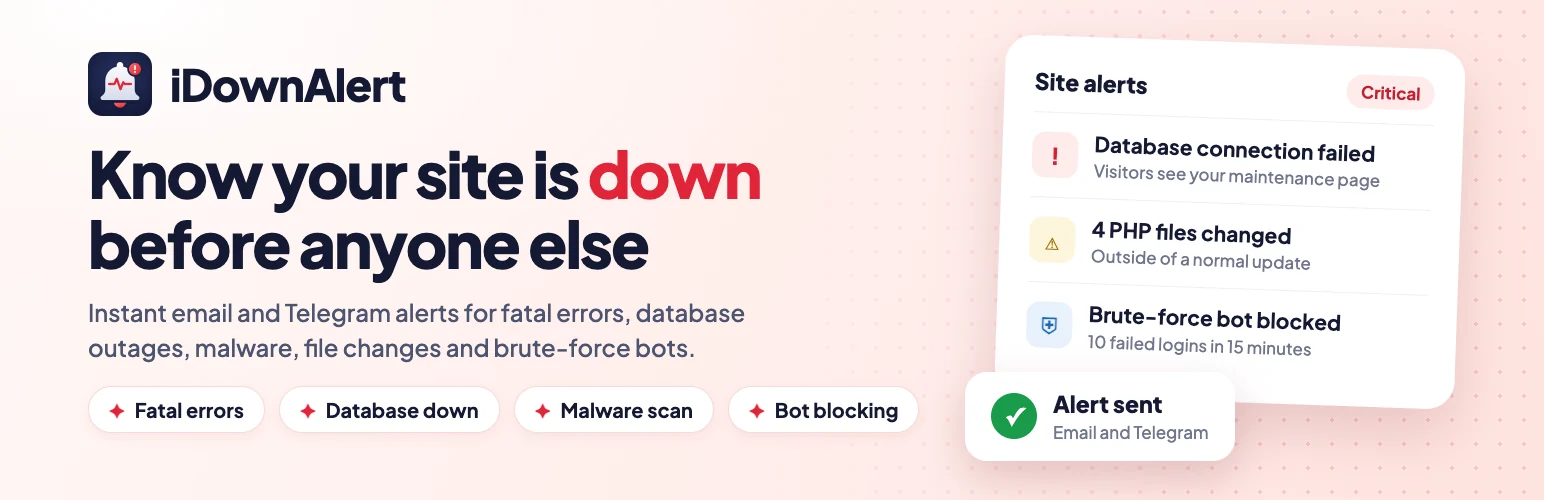
Here is the catch with most WordPress notifications: they need WordPress to be working. When the database is gone or a plugin crashes the site, the code that would have warned you never gets to run.
iDownAlert gets around this with two small drop-in files in wp-content, db-error.php and fatal-error-handler.php. These are standard WordPress drop-ins, and WordPress loads them at exactly the moments that matter. So alerts still go out when the database is down, or when a plugin crashes before the others load.
If another plugin already uses one of those drop-ins, iDownAlert leaves it alone. Everything it adds is removed when you deactivate it.
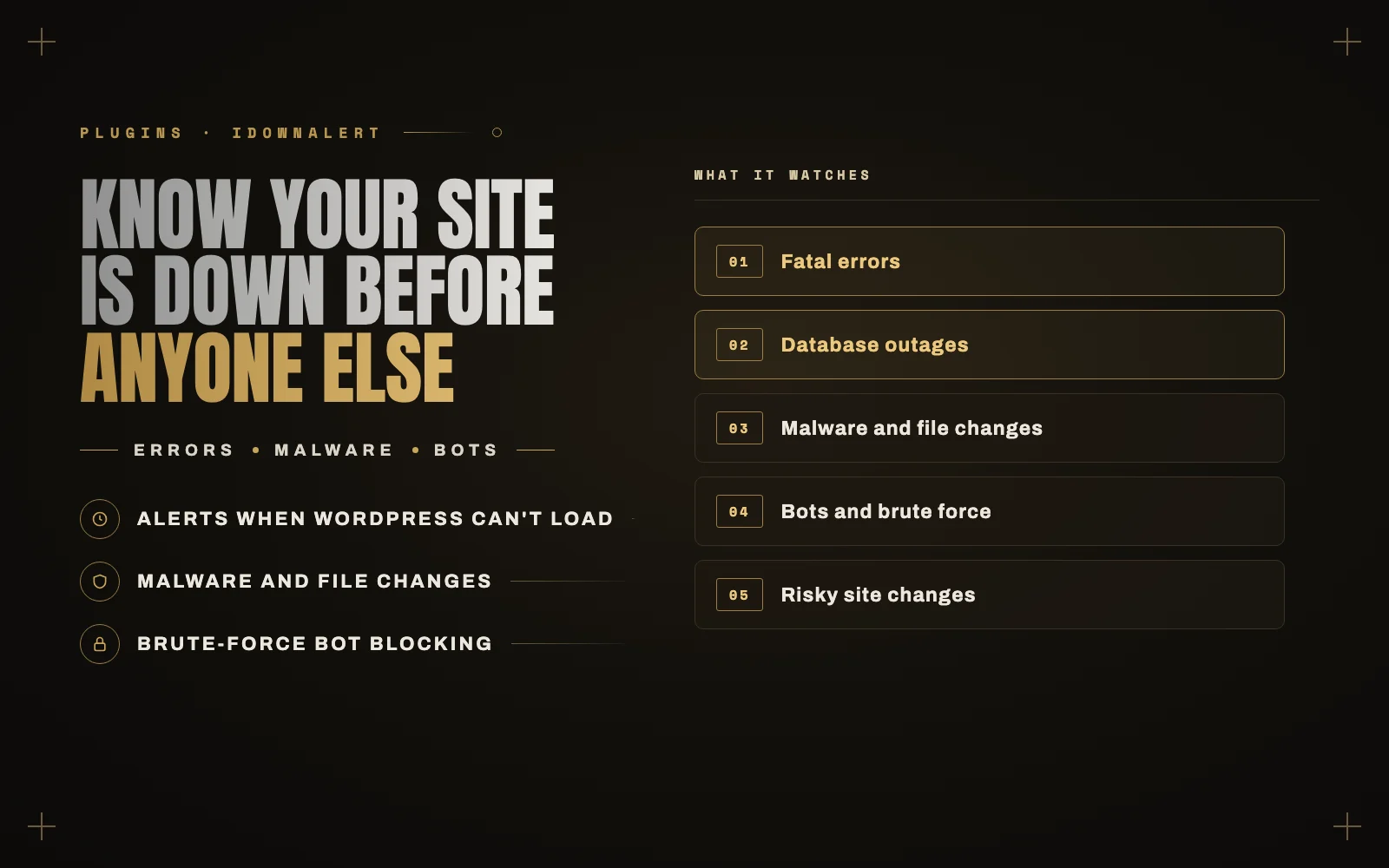
What it watches
Errors and downtime
- White screens and fatal errors. You get the error message, the file and line, and which plugin or theme caused it.
- Database outages. You get an email, and visitors see a clean “We’ll be right back” page instead of a bare error. When the database returns, you are told again with the total downtime.
- The whole server going down. See below, because this one needs help from outside.
Malware and file changes
- Any PHP file in the uploads folder, which is a common sign of a hack.
- Unknown PHP files in wp-admin, wp-includes and the site root.
- PHP files added or modified in plugins, must-use plugins and themes, except changes made by normal updates.
- New and changed files checked for backdoors, web shells and obfuscated code.
- An optional check of WordPress core against the official WordPress.org checksums. It stays off until you turn it on.
Scans run in the background once a day by default. After the first scan, only new and changed files are checked for malicious code.
Bots and brute force
Repeated failed logins, 404 floods, and scanners probing for files like .env, .git or wp-config backups all trigger alerts. You can also have it block the offending IP for a time you choose. It works behind Cloudflare and other proxies, and there is an allowlist for your own IPs.
Risky changes and site health
- New administrator accounts.
- Site URL, admin email, registration or default role changes.
- Plugins and themes installed, updated, activated, deactivated or deleted.
- Failed automatic updates.
- SSL certificates about to expire, and low disk space.
- Emails your site fails to send.
One email per problem, not five hundred
An alert tool that floods your inbox gets ignored, and then it is useless. Repeats of the same problem are grouped: you get one email, and the next one tells you how many times it happened in between. A global hourly cap protects you during an attack.
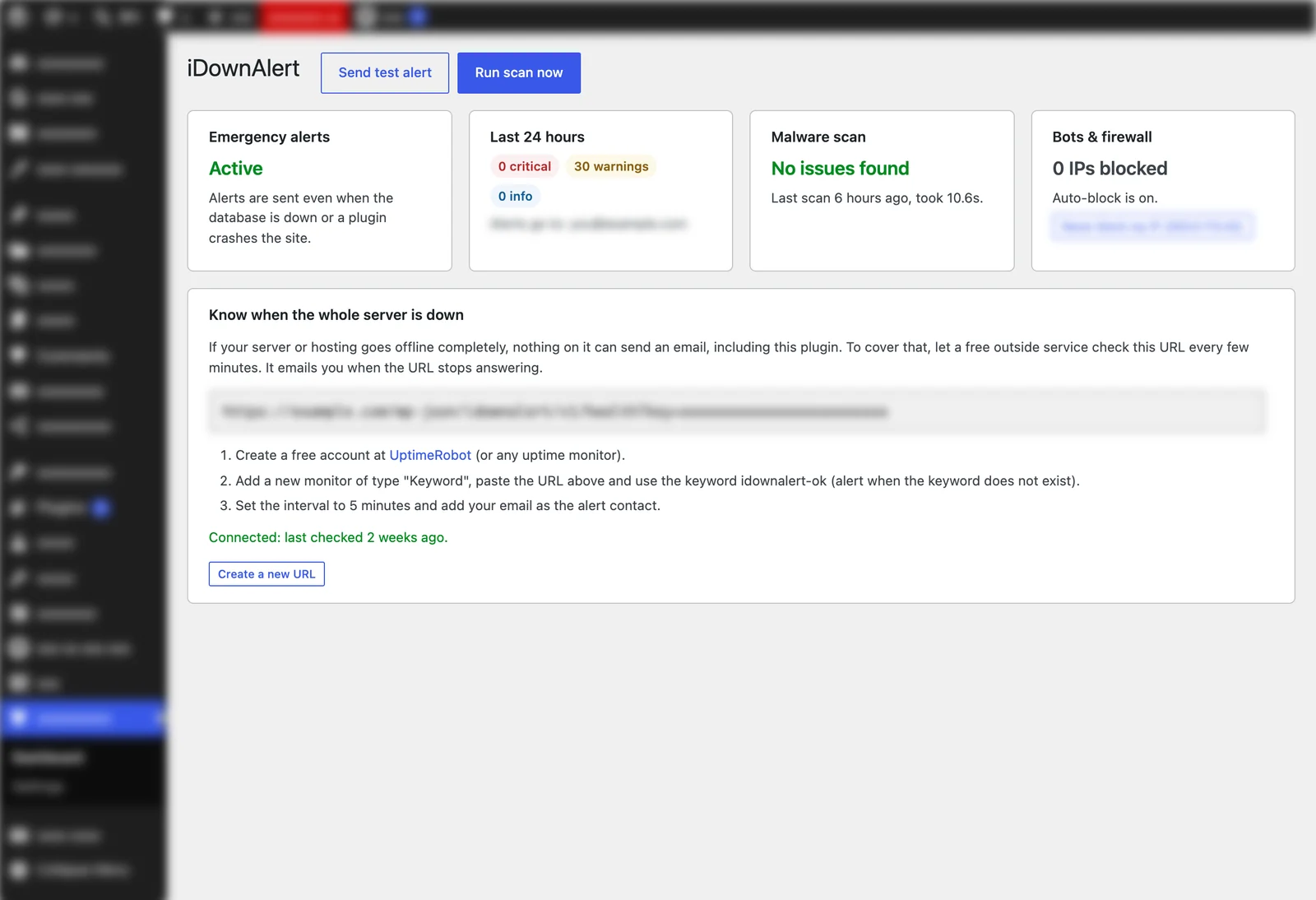
Every event is also kept in a searchable log, with its severity, source IP and repeat count.
Alerts that actually arrive
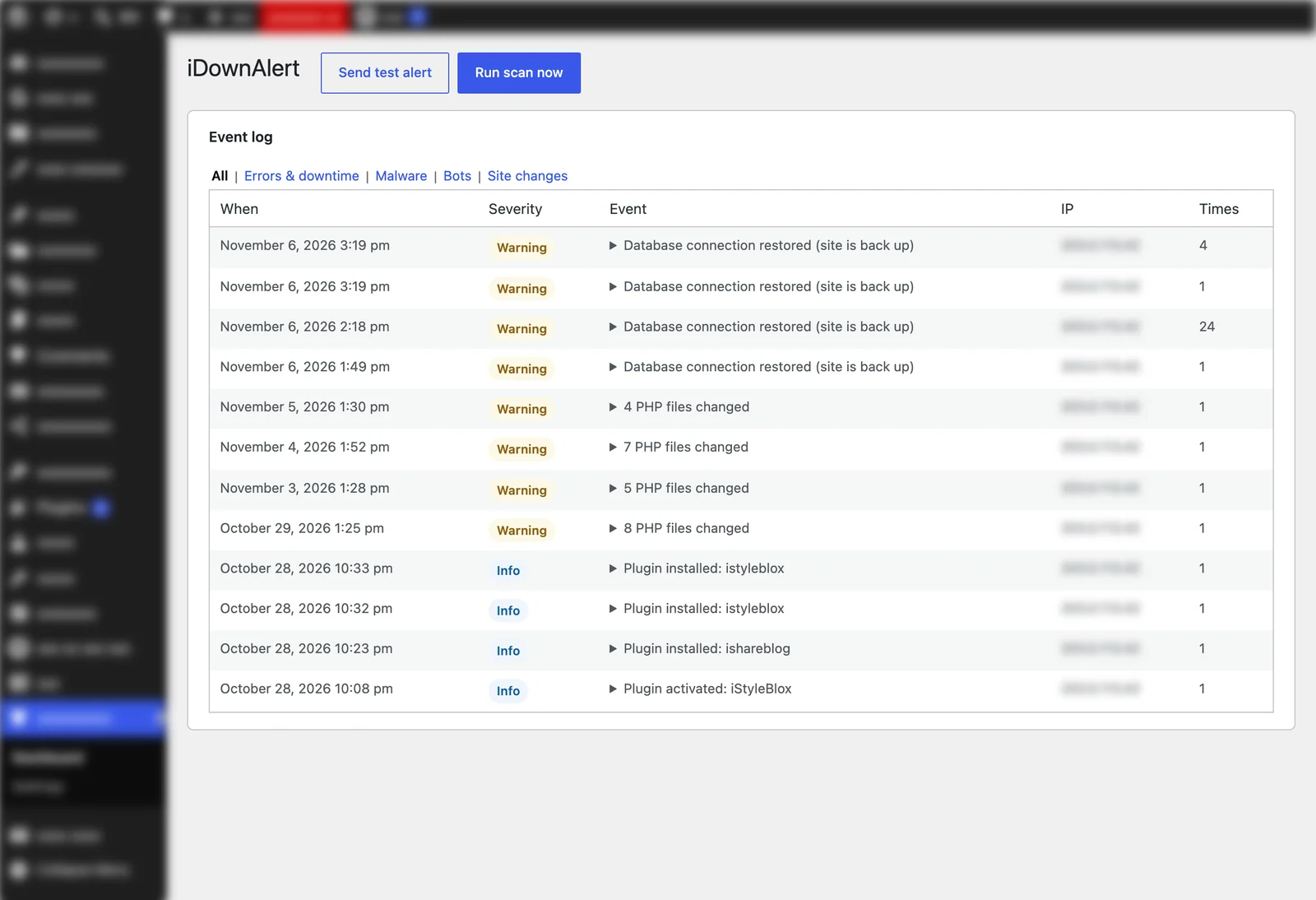
A broken mail setup is one of the things you want to hear about, so depending only on your site’s normal email would be a weak spot. Alerts use wp_mail() by default, but iDownAlert can also send through its own SMTP connection (Gmail, Outlook, Zoho or your host) that works independently of other mail plugins. You can add a Telegram bot as a backup, and there is a button to send a test alert.
What it cannot do, and how it covers that
No plugin can send an email from a server that is switched off. I would rather say that plainly than pretend otherwise.
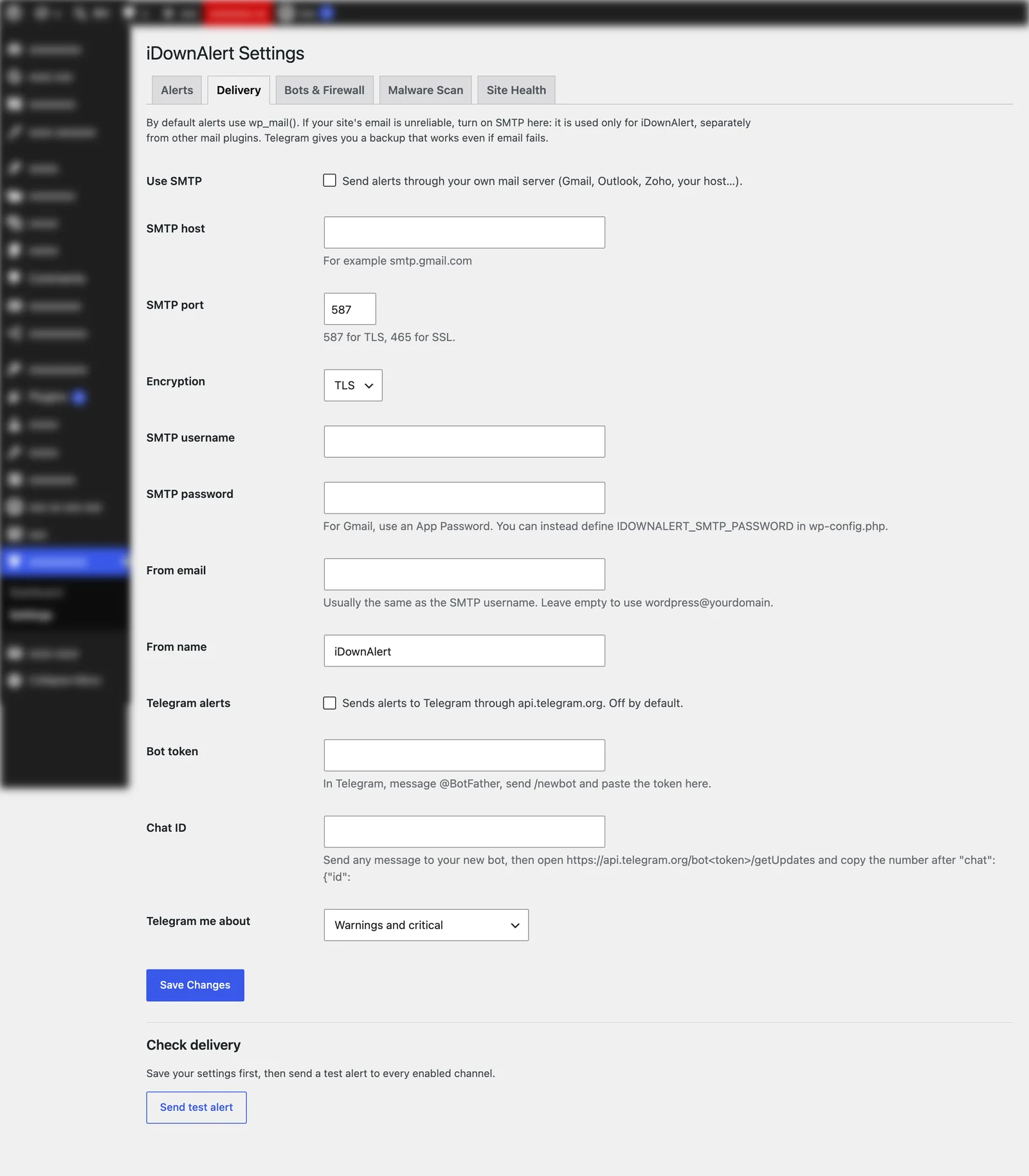
To cover it, iDownAlert gives you a private heartbeat URL. You add that URL to a free outside uptime monitor such as UptimeRobot, whose free plan checks every five minutes. If the URL stops answering, the monitor emails you. The dashboard walks you through the setup and confirms when the monitor is connected.
The plugin sends nothing to the monitor. The monitor calls your URL, and the URL returns only an ok or problem status.
What it connects to
iDownAlert only talks to outside services you turn on:
- WordPress.org, if you enable the core check. Only your WordPress version and locale are sent.
- Telegram, if you enable Telegram alerts. The alert text goes to the chat you choose.
- Your SMTP server, if you enable SMTP.
How to set it up
- In your dashboard, go to Plugins, Add New Plugin, search for iDownAlert, click Install Now, then Activate.
- Go to iDownAlert, Settings, and check the email address that should receive alerts.
- Optional: under Delivery, set up SMTP or Telegram, then click “Send test alert”.
- Copy the heartbeat URL from the dashboard into a free uptime monitor.
The first scan runs a few minutes after activation. It needs WordPress 6.4 or later and PHP 7.4 or later.
Try it
Get iDownAlert on WordPress.org, and if something does not work the way you expect, tell me in the support forum. There are more details and every screenshot on the plugin page.
An alert tells you about a problem. Someone still has to fix it. If you would rather have that handled for you, it is what my WordPress maintenance plans are for, and you can tell me about your site any time.