“Why is my WordPress admin so slow?” and “why is my WordPress dashboard so slow?” both sit near the top of Google’s suggestions for WordPress. The frustrating part is that the site itself often feels fine. Visitors get fast pages, and you wait five seconds every time you open the post editor.
That gap is the clue. Visitors usually get cached pages. The admin never does. Every click in the dashboard makes WordPress, every plugin and the database do real work, live. So a slow admin tells you how heavy the site is underneath the cache.
Step 1: measure it, do not guess
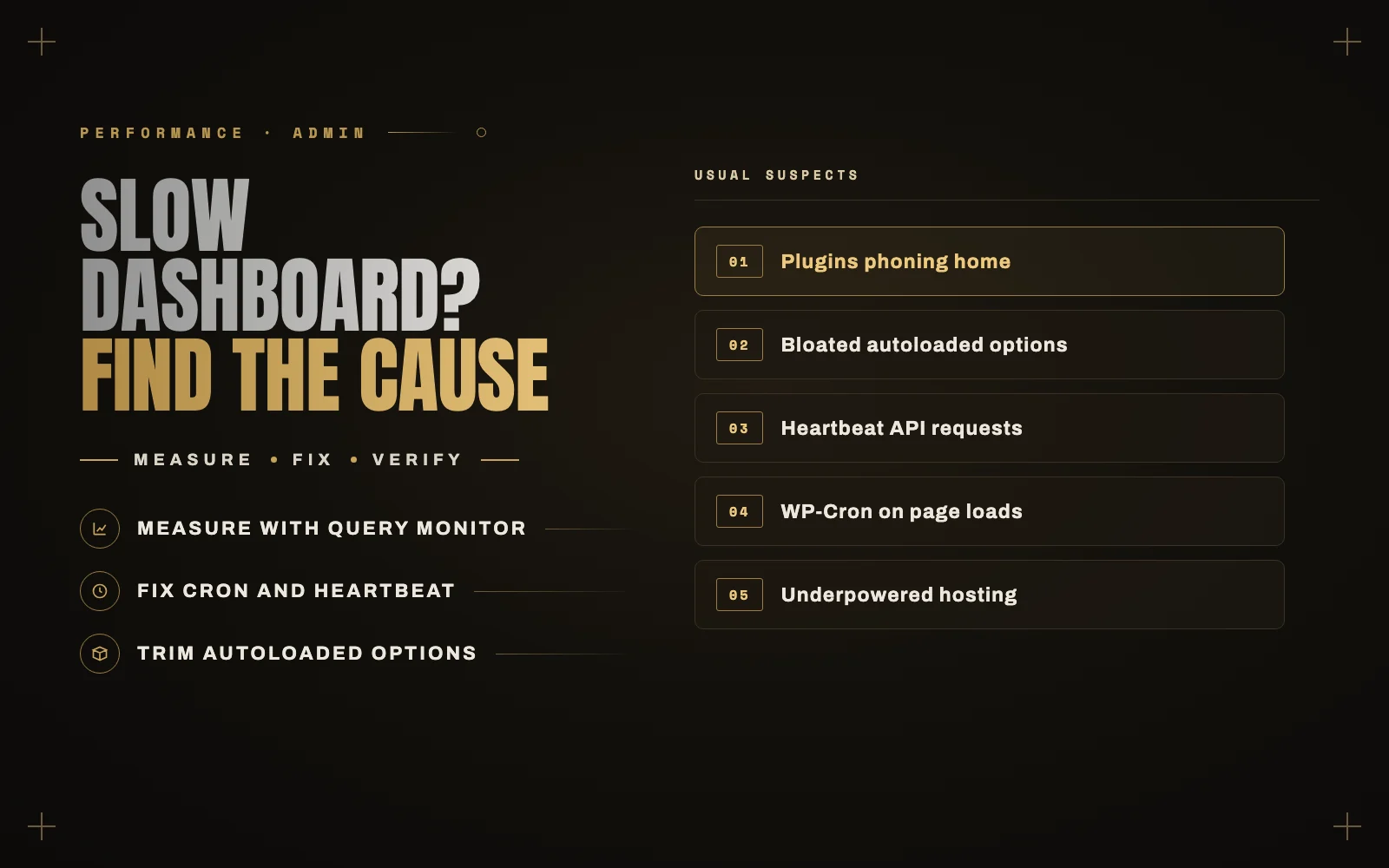
Install the free Query Monitor plugin. Open a slow admin screen and look at the new item in the admin bar. It shows:
- Total page time and how much of it was spent on the database.
- Queries by component, which tells you which plugin made the most database queries and how long they took.
- HTTP API calls, which catches plugins that phone home to their own servers on every page load.
That last one is the most common culprit I find. A plugin that checks its license or fetches news from its developer on every admin page can add seconds when that server is slow. Query Monitor names it.
Remove Query Monitor when you are done. It is a diagnostic tool, not something to leave running.
Step 2: the usual causes, and their fixes
A plugin doing too much
If Query Monitor points at one plugin, check whether it has a setting to turn off the heavy part. WooCommerce’s admin analytics, page builder template libraries and some SEO plugins’ admin dashboards are common examples. If the plugin has no setting and you cannot live without it, ask its developer. If you can live without it, deactivate it and measure again.
Too many autoloaded options
WordPress loads a set of saved settings, called autoloaded options, on every single request. Plugins add to it, and uninstalled plugins often leave their settings behind. When that pile gets large, everything slows down.
Go to Tools, Site Health. If it warns about autoloaded options, that is your sign. The cleanup means finding large leftover rows in the wp_options table and turning off autoload for them or removing them. Do this with a backup in place, or have a developer do it. Deleting the wrong row can break a plugin.
The Heartbeat API
While you edit a post, WordPress sends a request to your server every 15 to 60 seconds to autosave and check post locks. With several people logged in and several tabs open, that adds up, especially on shared hosting. A performance plugin can slow Heartbeat down. Do not switch it off completely in the editor, or you lose autosave.
WP-Cron running on page loads
WordPress runs its scheduled tasks (backups, emails, cleanup, imports) when someone loads a page. If a task is heavy, whoever loads that page waits for it, and in the admin that is you. The fix is to disable WP-Cron’s page-load trigger with define( 'DISABLE_WP_CRON', true ); in wp-config.php and set up a real server cron job in your hosting panel to run it every five minutes instead. Most hosts have a cron jobs screen for exactly this.
Not enough server for the job
Cheap shared hosting is built for cached visitor traffic, not for the admin. If Query Monitor shows pages that do little work but still take seconds, your server is the bottleneck. Two things help: a persistent object cache (Redis or Memcached, which many hosts offer with one click) and a host with more PHP workers. An outdated PHP version also slows everything down, and I explain how to update PHP safely separately.
Too many posts in a list
A Posts or Products screen showing 200 items with extra columns from several plugins is slow by design. Go to Screen Options at the top right and set it back to 20.
Step 3: rule things out quickly
If Query Monitor does not make it obvious, use your host’s staging site to test with all plugins off, then turn them back on one at a time and time the admin after each. It is tedious, but it always finds the answer. The free Health Check & Troubleshooting plugin can do this for your account only, without affecting visitors.
What not to do
- Do not install a second caching plugin. Page caching does not apply to the admin, so it will not help and can cause conflicts.
- Do not delete database rows you do not recognize without a backup.
- Do not assume it is the theme. Themes rarely affect the admin, unless the theme is also a page builder.
When the front end is slow too
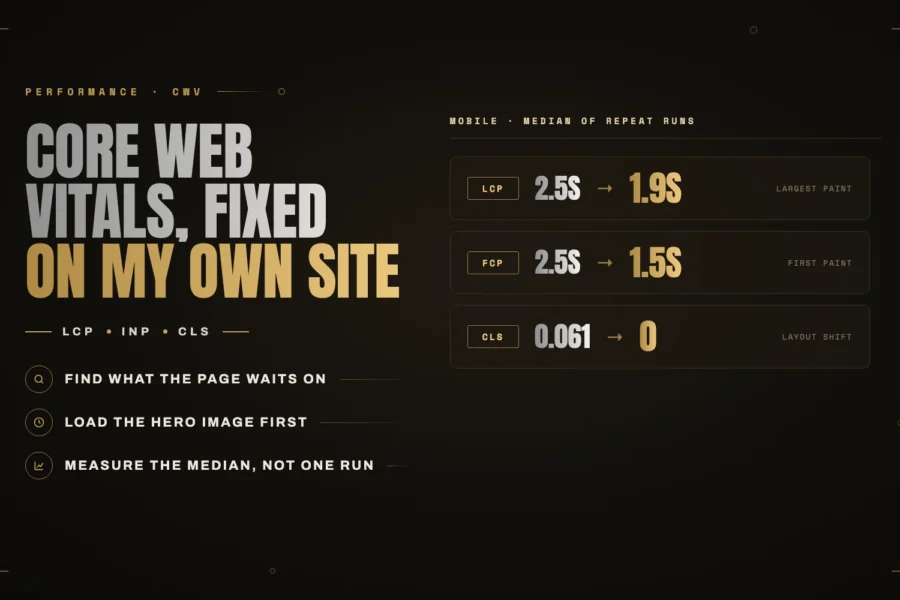
If visitors are waiting as well, the problem is bigger than the admin. Start with what I learned from fixing Core Web Vitals on my own site, or the Elementor speed guide if your site uses it.
If you would like me to find the cause for you, that is a normal part of my WordPress speed optimization work. Send me a note with the screens that feel slowest.