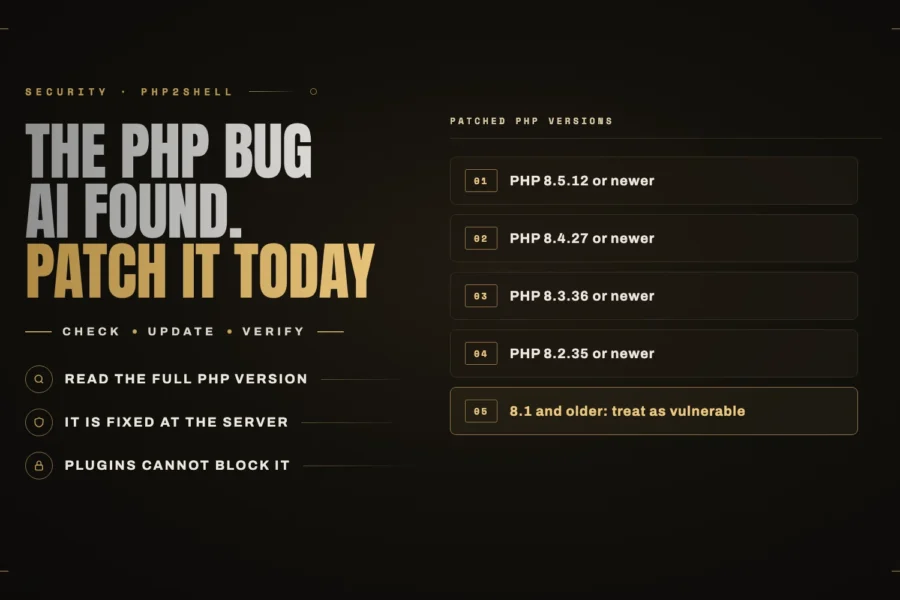
“How do I update WordPress PHP?” comes up in Google’s suggestions constantly, and this year it matters more than usual. PHP 8.2 gets its last security fixes on December 31, 2026. After that, any new PHP flaw on 8.2 stays open for good. After PHP2Shell, that is not a risk worth taking.
The good news: on most hosts, changing PHP is a dropdown. The work is in making sure your site survives the switch. Here is how I do it for clients.
What PHP is, and why WordPress cares
PHP is the language WordPress, your theme and every plugin are written in. Your host runs it, not WordPress. That is why you change it in your hosting panel and not in your WordPress dashboard, and why a WordPress update does not update PHP.
Newer PHP versions are faster and get security fixes. Older ones do not. WordPress itself recommends PHP 8.3 or newer.
Step 1: check what you are running
In WordPress, go to Tools, Site Health, Info, open the Server section and read the PHP version. Note the full number, like 8.2.34, not just 8.2. The last number tells you whether you have the latest security patch.
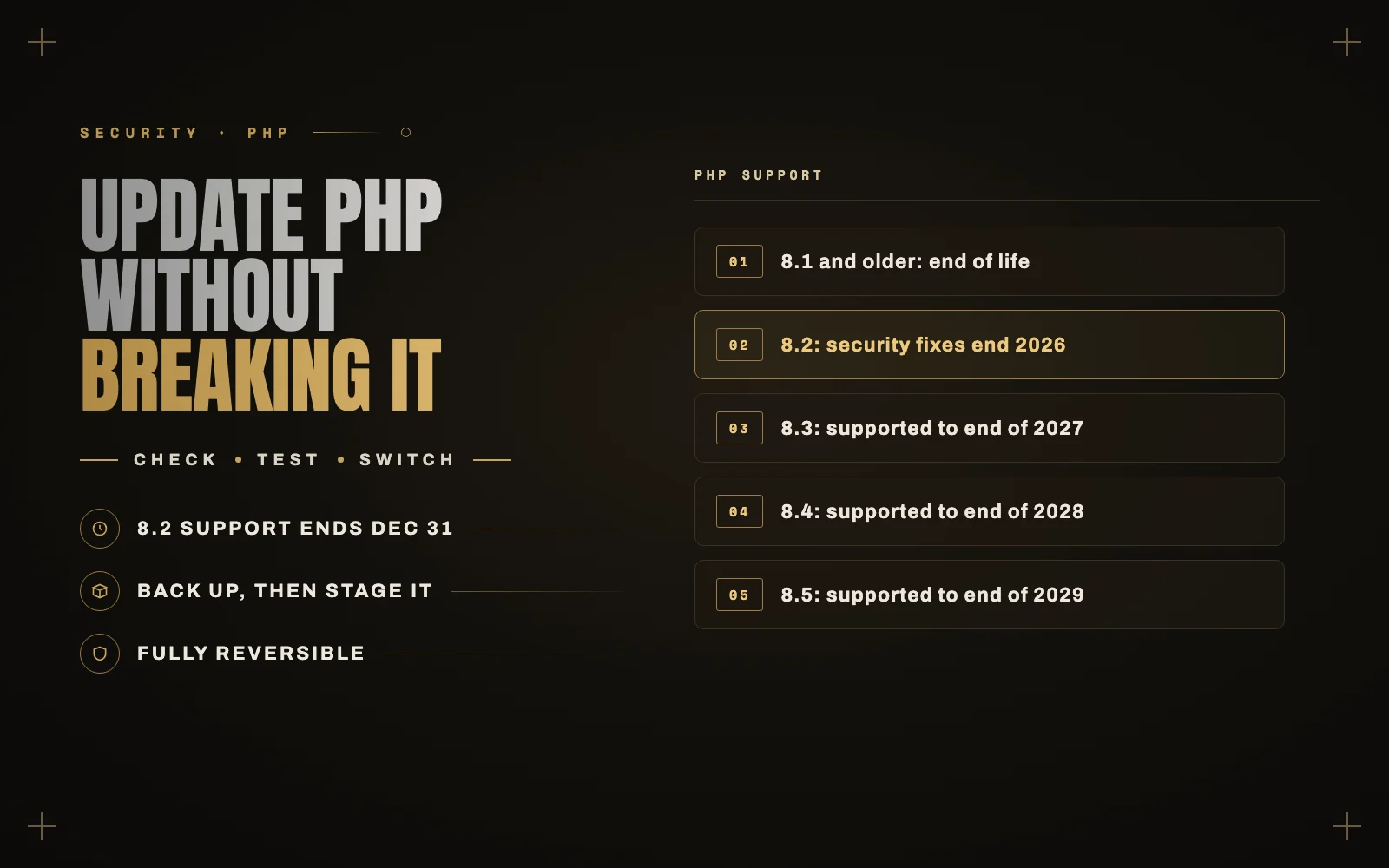
Here is where each version stands, from php.net:
- PHP 8.1 and older: no longer supported. Upgrade now.
- PHP 8.2: security fixes only, ending December 31, 2026. Plan your move this month.
- PHP 8.3: security fixes until the end of 2027.
- PHP 8.4: fully supported, with security fixes until the end of 2028.
- PHP 8.5: the newest, supported until the end of 2029.
For most WordPress sites today, 8.3 or 8.4 is the sensible target. 8.5 is fine if all your plugins support it, but it is where you are most likely to meet a plugin that has not caught up.
Step 2: take a backup you can restore
Make a full backup of files and database before you change anything. Most hosts have a one-click backup in the panel. Make sure you know how to restore it, because you are about to need that knowledge if anything goes wrong.
Step 3: update everything else first
Update WordPress, your theme and all your plugins before you touch PHP. Old plugin versions are the number one reason a PHP upgrade breaks a site. While you are there, look for plugins that have not been updated in more than a year. Those are your most likely problems, and often a good reason to replace the plugin anyway.
Step 4: test on staging if you can
If your host offers a staging site, and most good ones do, clone the site, switch the staging copy to the new PHP version and click through it:
- The homepage, a post, a page and your contact form.
- Your shop, cart and checkout, with a test order if you run WooCommerce.
- The admin: editing a post, the plugin settings pages you use.
Then turn on debugging on staging and look for warnings. Add these lines to wp-config.php on the staging copy only:
define( 'WP_DEBUG', true ); define( 'WP_DEBUG_LOG', true ); define( 'WP_DEBUG_DISPLAY', false );
Errors land in wp-content/debug.log. A few “deprecated” notices are normal and harmless. “Fatal error” lines are the ones to fix before you go live.
Step 5: switch PHP on the live site
The setting lives in your hosting panel. The names vary:
- Hostinger: Advanced, PHP Configuration.
- cPanel hosts: Select PHP Version, or MultiPHP Manager.
- SiteGround: Devs, PHP Manager.
- Managed WordPress hosts like Kinsta or WP Engine: usually in the site’s settings page.
Pick the version, save, and load your site in a private browser window straight away. Then go through the same checklist you used on staging.
If something breaks
- White screen or “There has been a critical error”: WordPress emails the admin address with the plugin or theme that caused it. Switch PHP back first to get the site up, then deal with that plugin.
- One feature stopped working: check
debug.logfor the plugin named in the error, update it or look for a replacement. - You cannot work out what broke: switch back. Changing PHP is fully reversible, which is why there is no reason to put this off.
What if your host does not offer a newer version?
If the newest PHP in your panel is 8.2 or older, ask your host when that will change. If they do not have an answer, that tells you something about how they handle security. As I found during PHP2Shell, even good hosts can lag behind on patches, and a host that is years behind on PHP versions is a reason to move.
The short version
- Check your version in Site Health.
- Back up.
- Update WordPress, the theme and plugins.
- Test the new PHP version on staging.
- Switch in your hosting panel and check the site.
- If it breaks, switch back and fix the plugin that caused it.
If you would rather not do this yourself, a PHP upgrade with testing is part of every WordPress maintenance plan I run, and I can do a one-off upgrade too. Tell me about your site.