What’s new in iTransparent – Media Background Remover: bulk processing, WooCommerce and a before/after slider
The latest iTransparent – Media Background Remover release is a major update. Remove backgrounds from a whole selection at once, process WooCommerce product images in one click, compare before and after with a slider, and add solid color backgrounds without spending extra credits.
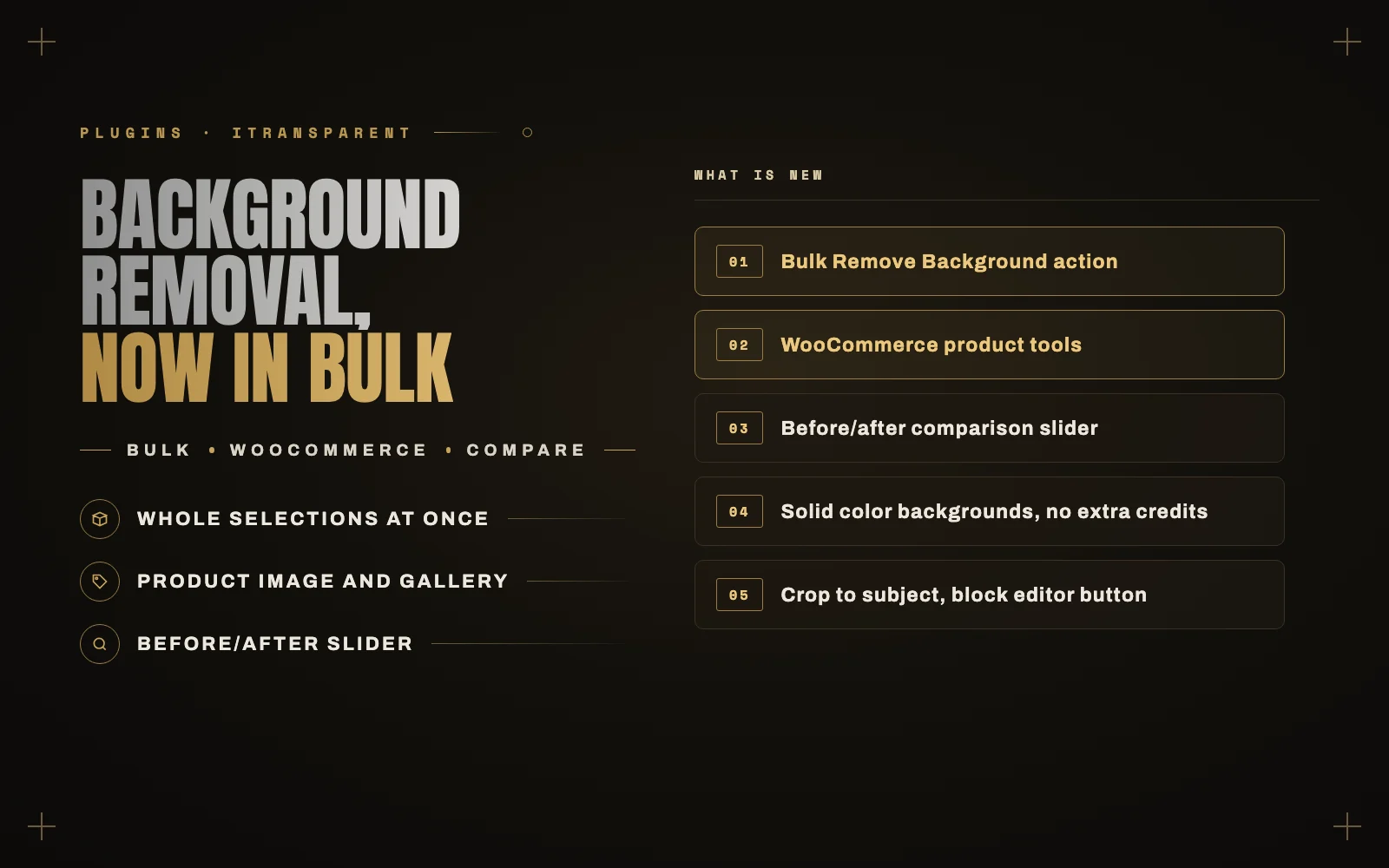
iTransparent – Media Background Remover started as a single button: open an image in the Media Library, remove the background, save a transparent copy. That covered one image at a time well. It did not cover the job most people actually have, which is a whole catalog.
Version 1.5.0 brought a major update, and 1.5.1 gave the plugin its new name. Here is what changed.
Bulk processing
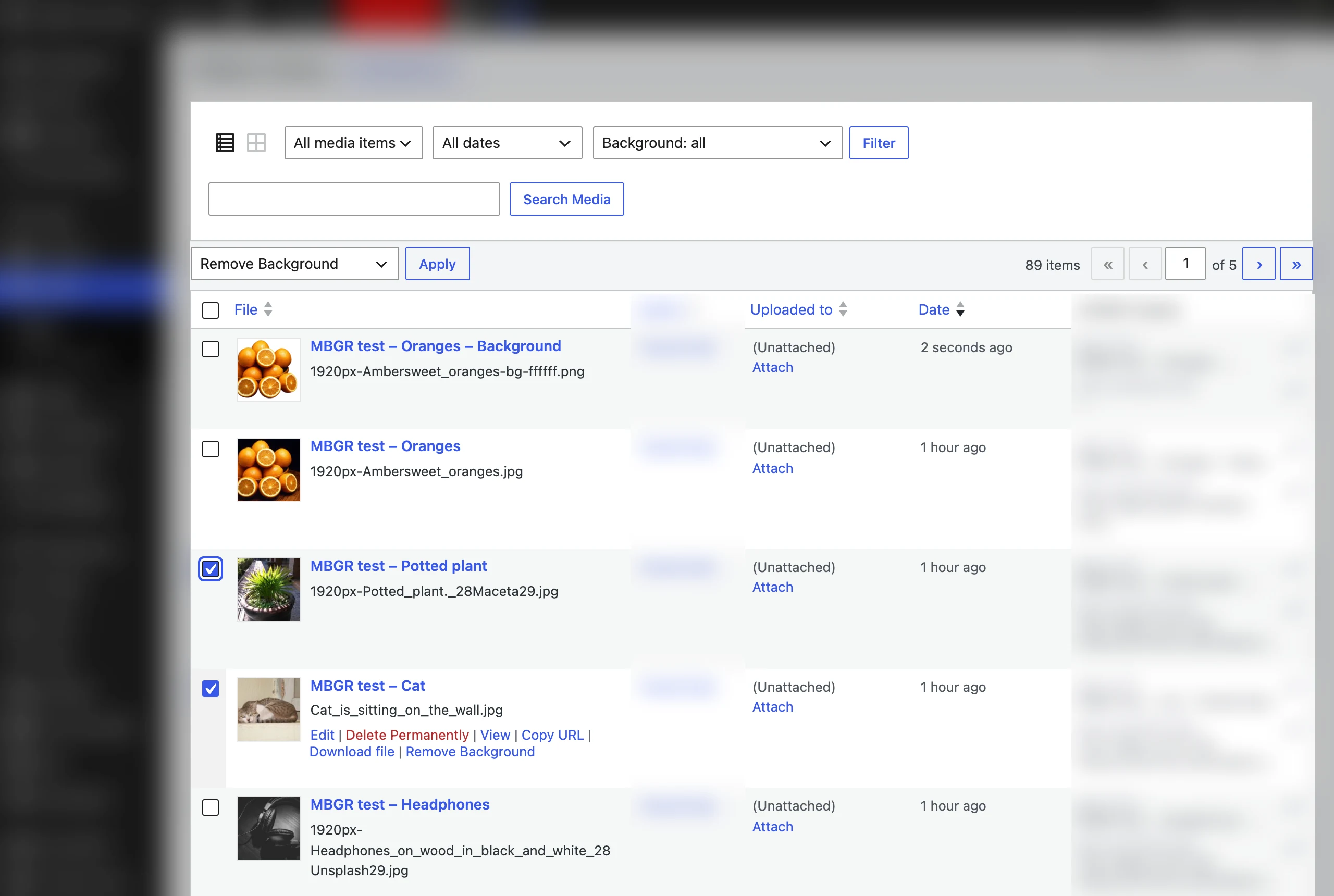
Select images in the Media Library list view, choose Remove Background from the bulk actions, and click Apply. That is the whole workflow.
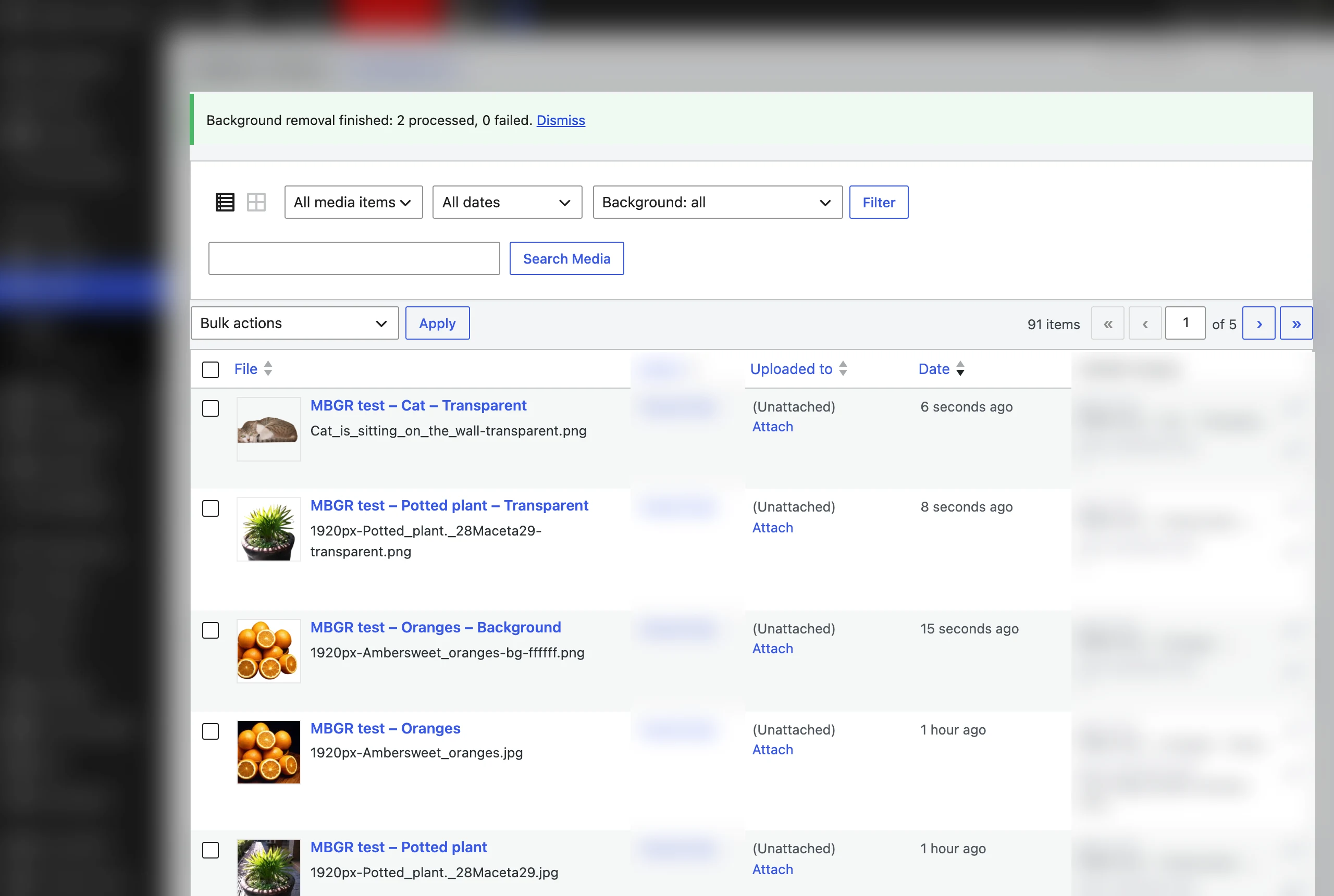
The images are processed in the background with WP-Cron, so you can keep working while it runs. A progress notice shows how many are done and how many failed, with the reason for each failure, and a Cancel button if you change your mind.
A new filter in the Media Library helps you keep track afterwards: show images with the background removed, originals that already have a processed copy, or images that have not been processed yet.
WooCommerce product images
Product photos are where background removal matters most, so 1.5.0 adds tools aimed at store owners:
- A box on the product edit screen that processes the product image and the gallery in one click.
- A bulk action on the Products list, for clearing a batch of products at once.
- Optional automatic processing when a product image is set.
- Optional swapping of the processed copies into the product. The originals stay in your Media Library either way.
A before/after slider
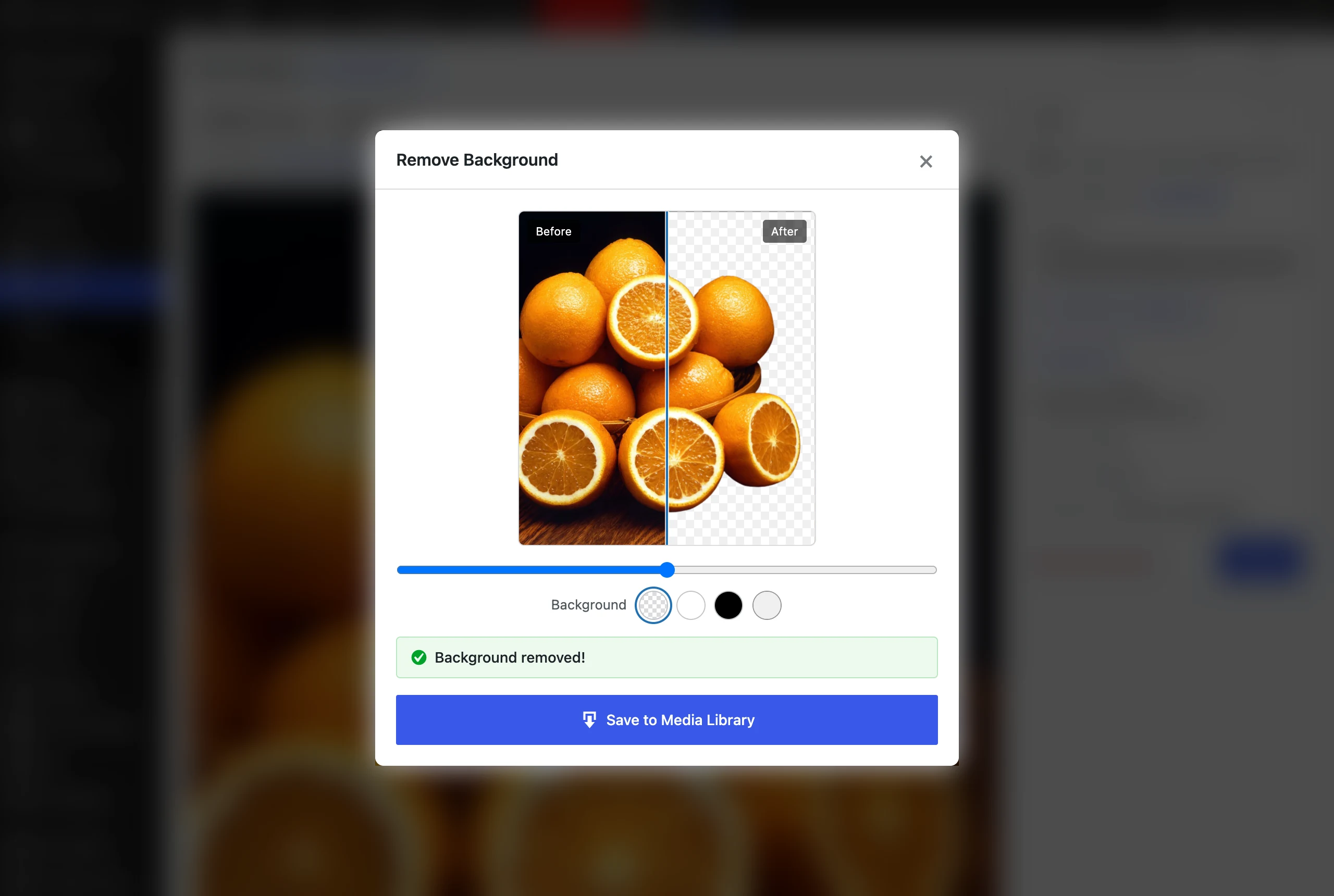
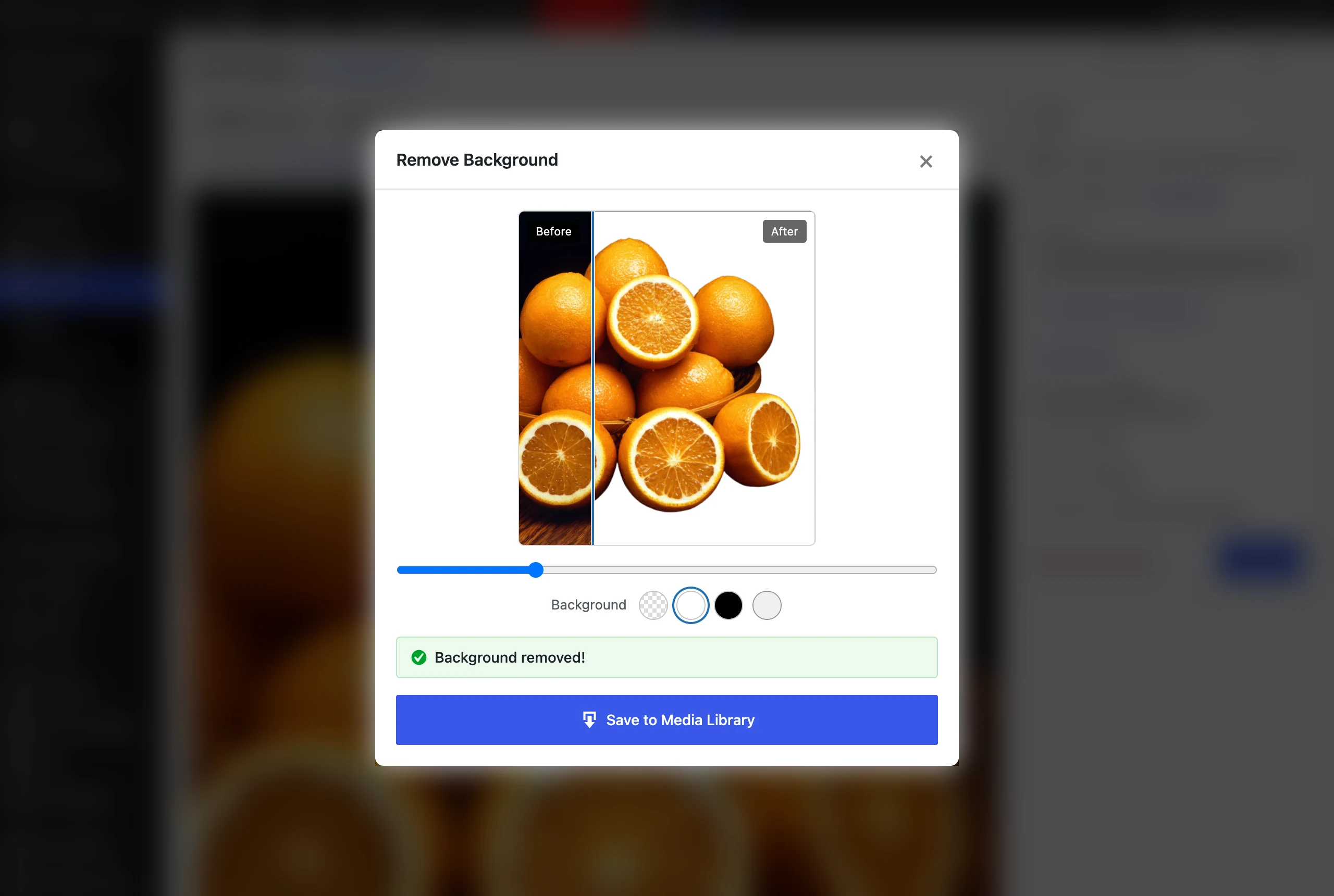
The preview window now has a comparison slider, so you can drag across the image and check the edges before anything is saved. Hair, fur and fine detail are where cut outs go wrong, and the slider makes that easy to see. I wrote more about where automatic removal struggles in how to remove image backgrounds without leaving WordPress.
Solid color backgrounds
Transparency is not always what you want. A marketplace feed or a clean product grid often needs a white background instead. You can now pick white, black or any custom color before saving, and set a default background in the settings.
The color is applied on your own server with GD, after the cut out comes back, so it does not cost any extra remove.bg credits.
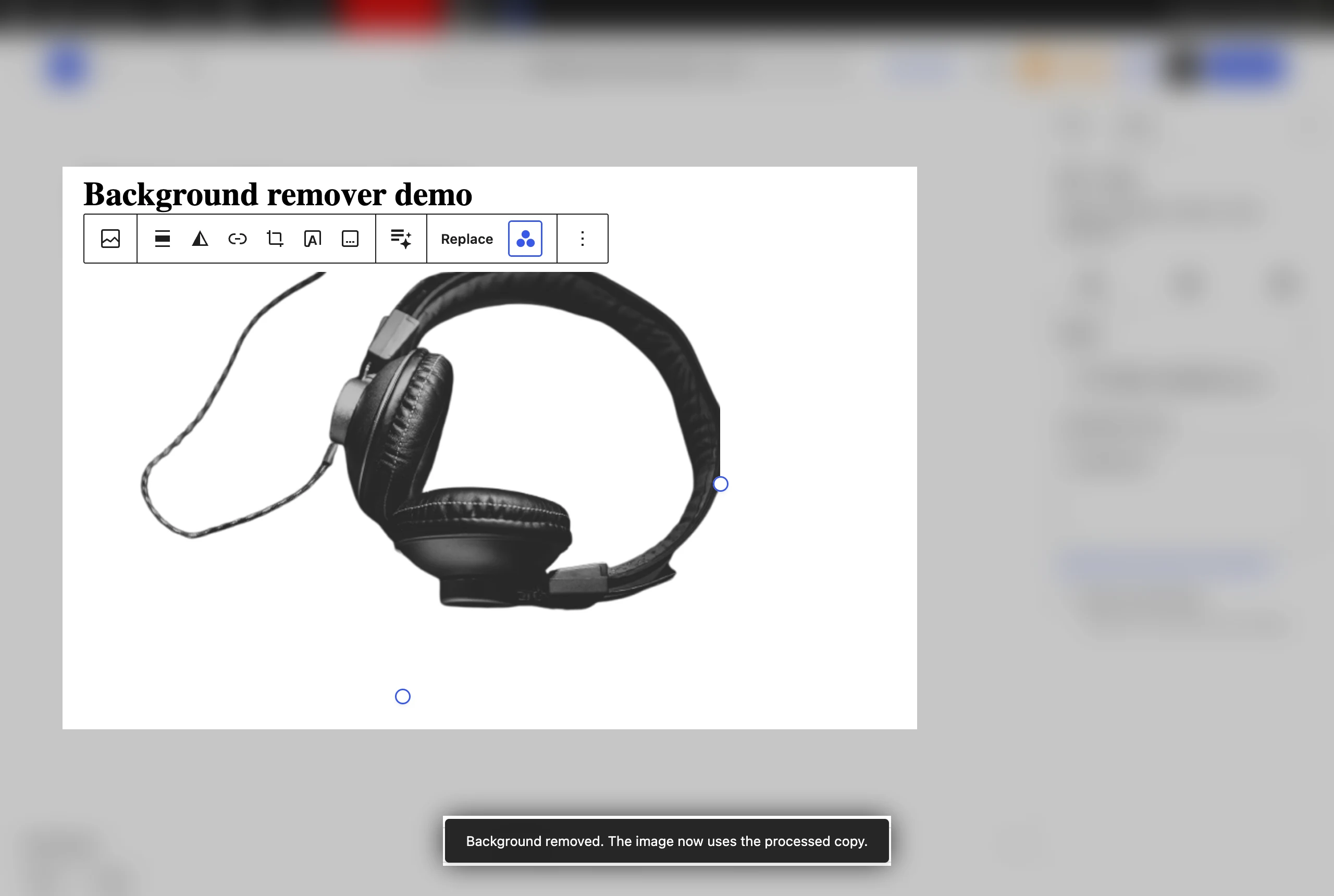
Remove backgrounds from the block editor
The Image block toolbar has a new Remove background button. Click it and the block switches to the processed copy in place, so you never have to leave the post you are writing.
Better cut outs, fewer surprises
- Crop to subject, with an adjustable margin, for consistent product framing.
- A subject type hint (product, person or car) for better edges.
- Remaining credits are shown on the settings page, so you know where you stand before a big batch.
- Processed copies inherit the original’s alt text.
Access, security and reliability
- Access control. Choose who can remove backgrounds: Authors, Editors or Admins only. Users can only process images they are allowed to edit.
- API key in wp-config.php. Add
define( 'MBGR_API_KEY', '...' )to keep the key out of the database. The saved key is also no longer printed in the settings page HTML. - No double spending. A double click no longer spends credits twice.
- Cleaner library. Unsaved previews are cleaned up automatically.
- Developer hooks. The
mbgr_required_capabilityandmbgr_api_fieldsfilters, and thembgr_queue_item_processedaction.
The release passes WordPress.org’s official Plugin Check with no errors, and I tested it end to end on this site.
What stays the same
The original image is never touched. Every result is saved as a new PNG or WebP file next to it, so a cut out you do not like is one delete away. If you are choosing between the two formats, the short version is WebP for anything shown on the site and PNG for files going somewhere else.
You still need your own remove.bg API key. Their free plan gives 50 preview-resolution calls a month, which is enough to try everything in this release.
Get the update
iTransparent – Media Background Remover is free on WordPress.org. It needs WordPress 6.2 or later and PHP 7.4 or later. If you already have it installed, update from your Plugins screen. The full feature list and screenshots are on the plugin page.
If you need something built around your own media or product workflow, that is the kind of work I do in custom WordPress plugin development. Tell me what you have in mind.
Keep reading
 Plugins
iMegaSearch: instant WordPress search that does not wait for the server
My new free plugin, iMegaSearch, replaces WordPress search with a full-screen overlay that shows grouped results as you type. The difference is… Read article ↗ Plugins