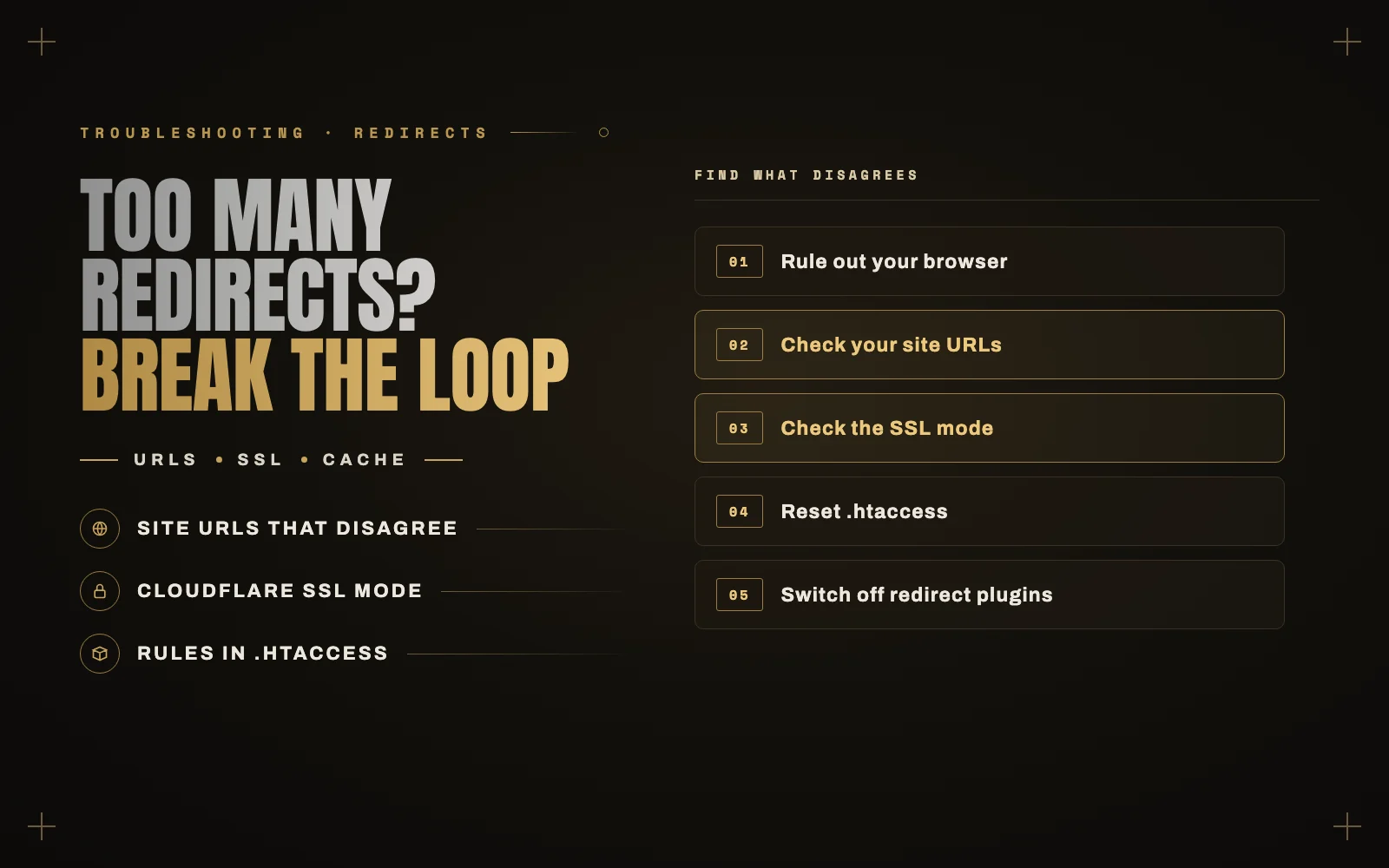
Your browser says “This page isn’t working. Your site redirected you too many times”, or ERR_TOO_MANY_REDIRECTS. The page never loads, and sometimes wp-admin does the same thing.
A redirect loop is an argument between two settings. One says “go to the https version”, and the other says “no, go to the http version”. Your browser follows along until it gives up. So the job is to find the two things disagreeing. It nearly always started with an SSL change, a migration, a URL change or a new CDN.
Step 1: rule out your browser
Open the site in a private window, or on your phone with Wi-Fi off. If it loads there, your browser is holding on to old cookies or a cached redirect. Clear the cookies and cache for that site and you are done.
If it fails everywhere, keep going.
Step 2: check your site URLs
In Settings, General, the WordPress Address and Site Address must match your real address, including https and www or no www. A mismatch is the most common cause after a migration or a URL change.
Locked out of the admin? You can force them from wp-config.php. Add these two lines above the “stop editing” comment, using your real domain:
define( 'WP_HOME', 'https://example.com' );define( 'WP_SITEURL', 'https://example.com' );
If the site comes back, your stored URLs were wrong. Correct them in the admin or in the wp_options table through phpMyAdmin, then remove the two lines. Pick one version of your domain and use it everywhere. If your host redirects www to the bare domain while WordPress insists on www, that alone makes a loop.
Step 3: if you use Cloudflare, check the SSL mode
This is the classic cause. With Cloudflare’s SSL mode set to Flexible, Cloudflare talks to your server over plain http. Your server or WordPress redirects http to https, Cloudflare passes it along, and around it goes.
In Cloudflare, open SSL/TLS and set the mode to Full (Strict) if your server has a valid certificate, which most hosts give you for free. Full works if the certificate is self-signed. Other CDNs and load balancers can cause the same loop, so check for a similar setting.
If your site sits behind a proxy and WordPress cannot tell the visitor is on https, it may keep trying to redirect them. Your host or CDN’s documentation will have the recommended fix.
Step 4: reset .htaccess
On Apache and LiteSpeed servers, redirect rules live in the .htaccess file in your site’s root. A leftover force-https or www rule, or one duplicated by a plugin, can collide with everything else.
Download a copy as a backup, then replace the file’s contents with the default WordPress block, which you can copy from the WordPress documentation. If the site loads, the problem was in the old file. Add your custom rules back one at a time.
If you can reach the admin, going to Settings, Permalinks and clicking Save also rebuilds the WordPress section of the file.
Step 5: switch off plugins that redirect
SSL plugins, redirection plugins, security plugins and caching plugins can all add redirects. In your file manager, rename wp-content/plugins to plugins-off. If the loop stops, rename it back, then rename individual plugin folders until you find the one responsible.
Check your hosting panel too. Many hosts have a “force HTTPS” switch, and having that on along with an SSL plugin and a Cloudflare rule means three things are trying to do the same job. One is enough.
Step 6: clear every cache
After any fix, purge your caching plugin, your host’s cache and your CDN. Redirects get cached, so you can solve the problem and keep seeing it. Test in a private window.
When only wp-admin loops
If the front end is fine and only the admin loops, it is usually a cookie or login problem:
- Clear cookies for the site.
- Look for a
FORCE_SSL_ADMINline inwp-config.phpand check that the site really has working https. - Temporarily rename any security plugin that hides or moves the login page.
How to see what is actually happening
If you are stuck, the redirect chain shows you the answer. Open your browser’s developer tools, go to the Network tab, tick “Preserve log”, and load the site. You will see each hop, and the pattern tells you what to look at. Bouncing between http and https points to SSL settings. Bouncing between www and non-www points to site URLs.
Do this after any migration
Most redirect loops arrive with a move to a new host, or a switch to https. After either one, I check the site URLs, the SSL mode, .htaccess and any force-https switches, in one sitting. That is part of my handover checklist as well.
A loop can also sit there unnoticed if it only affects some visitors, and a free outside monitor will catch it. If you have tried all of this, tell me your site address and I will trace the chain for you. It is a quick job as part of my WordPress development work.