Your site is replaced by one sentence: “Error establishing a database connection.” No header, no menu, no content.
Everything on a WordPress site lives in a database: posts, pages, settings, users, orders. Each page load starts with WordPress logging in to that database. This error means the login failed, so WordPress has nothing to show.
The good news is that the error says the connection failed, not that your data is gone. In most cases the content is sitting there untouched. These are the causes in the order I check them.
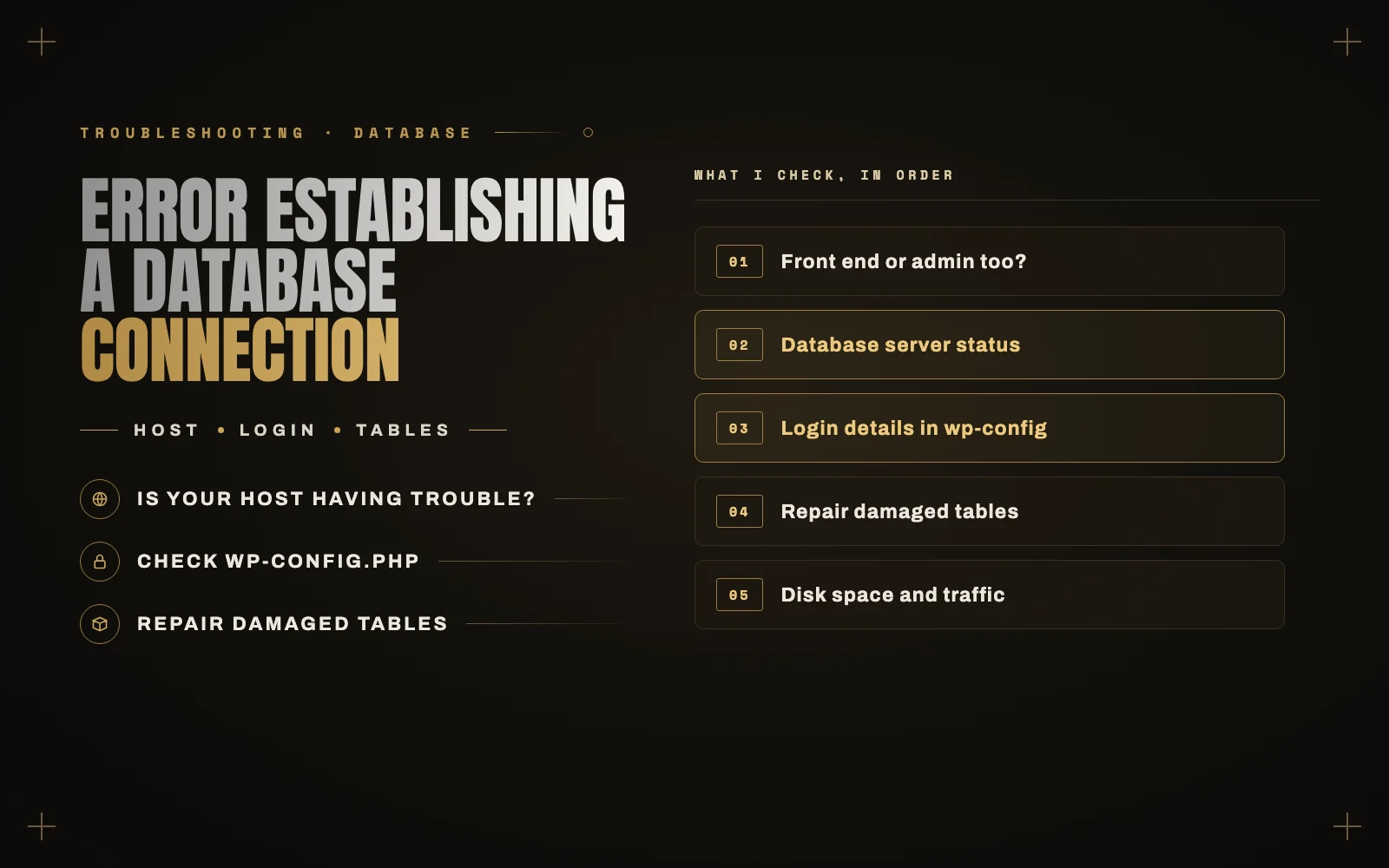
Step 1: is it the whole site, or just the front end?
Try loading /wp-admin/.
- Same error in both places: keep going. The connection is failing completely.
- The admin shows a message saying one or more tables are unavailable: the database is reachable, but tables are damaged. Jump to step 4.
Step 2: ask whether your host is having a problem
Check your host’s status page and look for an incident, then log in to your hosting panel. On shared hosting, the database server is often separate from your site, and it can go down or get overloaded with nothing being wrong on your side. A quick chat with support saves a lot of digging. Ask: “Is the MySQL server for my account running, and am I hitting a connection limit?”
Also ask this if the error comes and goes. An error that appears for a few minutes at busy times usually means too many connections, from a traffic spike, a bot flood or an underpowered plan.
Step 3: check the login details in wp-config.php
Open wp-config.php in your host’s file manager and find these four lines:
DB_NAME, the database nameDB_USER, the database userDB_PASSWORD, that user’s passwordDB_HOST, the database server, oftenlocalhost
Now open the databases section of your hosting panel and compare them. Every character matters, including prefixes like u123456_ that many hosts add.
This is the most likely cause if the site just moved to a new host, or if someone changed the database password. If the password might be wrong, set a new one in the hosting panel and paste the same one into wp-config.php. Check that the user is actually assigned to that database, too. Some hosts have those as separate steps.
DB_HOST trips people up after a migration. Not every host uses localhost, so copy the value from your host’s panel or documentation.
To test the login, open phpMyAdmin from your hosting panel. If it opens the database and shows your tables, the database is healthy and the details in wp-config.php are the likely problem. If phpMyAdmin fails too, go back to your host.
Step 4: repair damaged tables
Tables can get damaged, often after a crash or a full disk. WordPress has a built-in repair tool.
Take a backup first if you can. Then add this line to wp-config.php:
define( 'WP_ALLOW_REPAIR', true );
Visit /wp-admin/maint/repair.php and click Repair Database. Remove that line as soon as you finish. The repair page works without a login, so leaving it on lets anyone reach it.
Step 5: look at disk space and traffic
A full disk stops a database from writing, and it can look like a connection failure. Check your usage in the hosting panel, and clear out old backups if you are at the limit.
Then look at traffic. A brute-force attack or an aggressive bot can use up every database connection on a small plan. If your access logs show one address hammering wp-login.php or xmlrpc.php, block it. Caching also helps a lot, because cached pages never touch the database.
Step 6: when nothing changed and it still fails
Restore a recent backup from your host. If it is a recurring problem on a cheap plan, the honest fix is a better plan or a better host. No plugin will stop a server that cannot keep up.
If you find unfamiliar files or a changed wp-config.php that nobody on your team touched, treat it as a security problem and work through what to do in the first hour after a hack.
What your visitors see, and how you find out
The default error page looks alarming, it tells customers nothing, and the site can’t warn you, because the thing that sends your email is down too.
That is one of the main reasons I built iDownAlert. It is a free plugin that uses a small WordPress drop-in file that still runs when the database is gone. You get an email the moment it happens, visitors see a clean “We’ll be right back” page, and you get a second email with the total downtime when the database returns.
If the error will not go away, send me a note with what you have checked so far. Regular care is what my WordPress maintenance plans cover, and I wrote about what a plan should include if you are comparing options.