You load your site and get a blank white page. Or you get one line: “There has been a critical error on this website.” Sometimes the admin is gone too.
It looks catastrophic, but these are usually the same problem and it is usually fixable in minutes. PHP hit a fatal error and stopped. Older sites show nothing at all, which is the “white screen of death”. Newer WordPress versions show the critical error message instead.
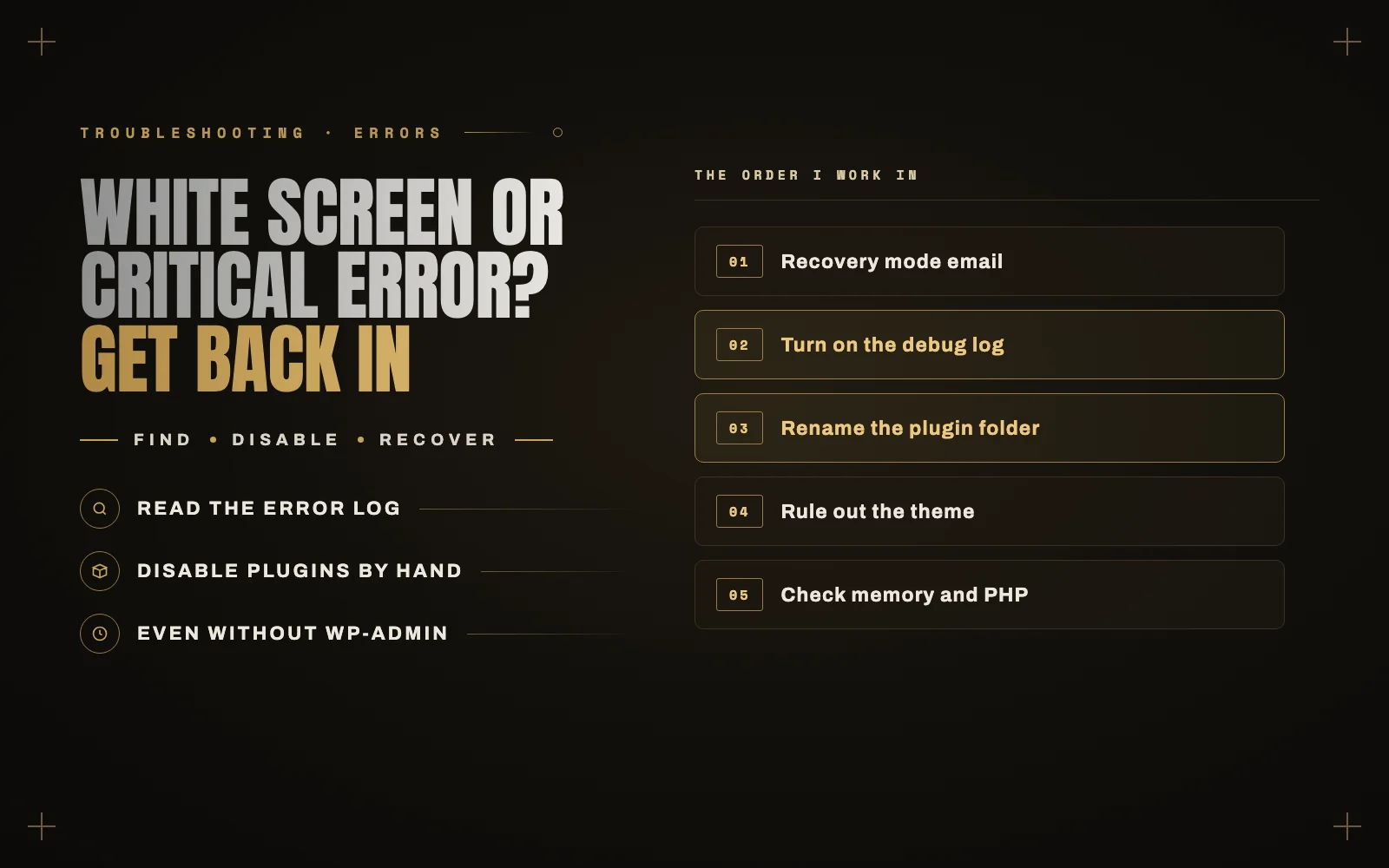
Your content is almost certainly still there. Here is the order I work through.
First, think about what just changed
Most fatal errors follow a change: a plugin update, a theme edit, a new plugin, a PHP version switch at your host. If you know what changed, go straight to undoing it. If the site broke overnight with nobody touching it, an automatic update is the first suspect.
Step 1: check your email for the recovery link
When WordPress catches a fatal error, it emails the site’s admin address with the subject “Your Site is Experiencing a Technical Issue”. That email names the plugin or theme at fault and contains a recovery mode link. The link logs you in with the broken plugin paused, so you can deactivate it from the dashboard.
Check spam too. Google shows plenty of searches for “WordPress critical error no email”, and there is a simple reason: the email goes to whatever address is in Settings, General, and often that is an old inbox or a site whose mail never worked. If nothing arrived, move on.
Step 2: turn on the error log
Guessing wastes time when WordPress can just tell you. Open wp-config.php through your host’s file manager or SFTP, and above the line that says “stop editing”, add:
define( 'WP_DEBUG', true );define( 'WP_DEBUG_LOG', true );define( 'WP_DEBUG_DISPLAY', false );
If those lines already exist, change them instead of adding them twice. Reload the broken page, then open wp-content/debug.log. The last lines name the file and line that failed, and the path tells you who owns it: wp-content/plugins/some-plugin/ means that plugin, wp-content/themes/your-theme/ means your theme.
Your host’s control panel may also have a PHP error log if this file stays empty. Turn WP_DEBUG back off when you finish, and delete debug.log, because it can expose paths on your server.
Step 3: disable the plugin without the dashboard
You do not need wp-admin for this. In your file manager, go to wp-content/plugins/ and rename the guilty plugin’s folder, for example from some-plugin to some-plugin-off. WordPress cannot load it, so it deactivates.
If the log did not name anyone, rename the whole plugins folder to plugins-off. If the site comes back, a plugin is responsible. Rename the folder back, then rename plugins one at a time, reloading after each, until the site breaks again.
Step 4: rule out the theme
If plugins are not the problem, rename your active theme’s folder in wp-content/themes/. WordPress falls back to another installed theme if it has one, so make sure a default theme is present. If the site loads, the problem is in your theme, often a recent edit to functions.php. A single missing semicolon there can take down the whole site.
Step 5: check the PHP memory limit
If the log says “Allowed memory size exhausted”, the site simply ran out of memory. Add define( 'WP_MEMORY_LIMIT', '256M' ); to wp-config.php. If your host caps memory below that, the setting will not help, and you need to raise it in the hosting panel or ask them to. If memory keeps running out, one plugin is usually to blame, so treat the limit as a bandage.
Step 6: check your PHP version
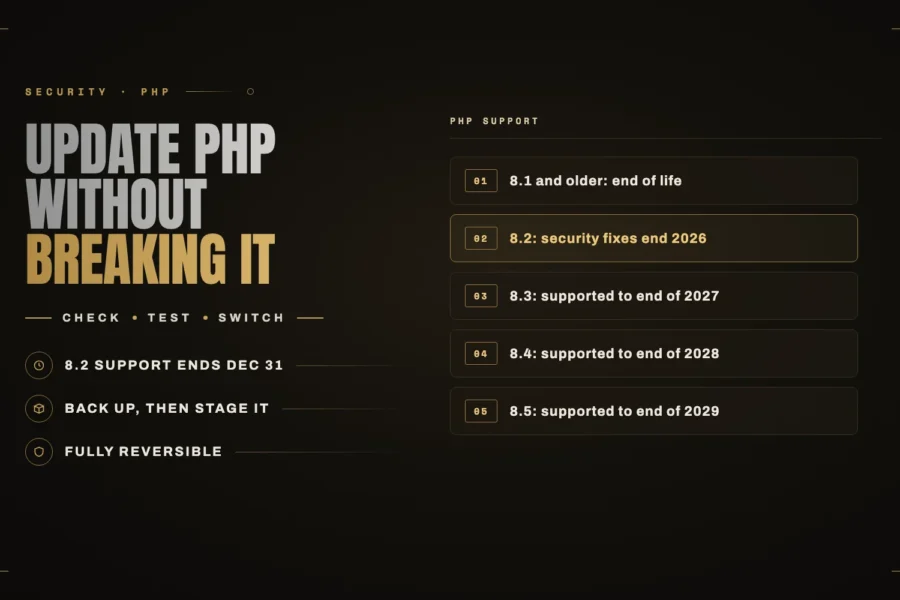
Old plugins and themes can crash on new PHP versions, and new plugins can crash on old ones. If your host recently moved you, or you changed it yourself, switch back in the hosting panel to confirm it. That buys you time, and then you fix the plugin. Do not stay on an old version for long. I covered how to update PHP safely here.
If only some pages are white
A single blank page usually means one template, shortcode or block is failing, not the whole site. The debug log will still catch it. Load that page, then read the end of the log.
Also clear your cache. A caching plugin or CDN can keep serving a broken page after the real problem is gone.
If nothing here helps
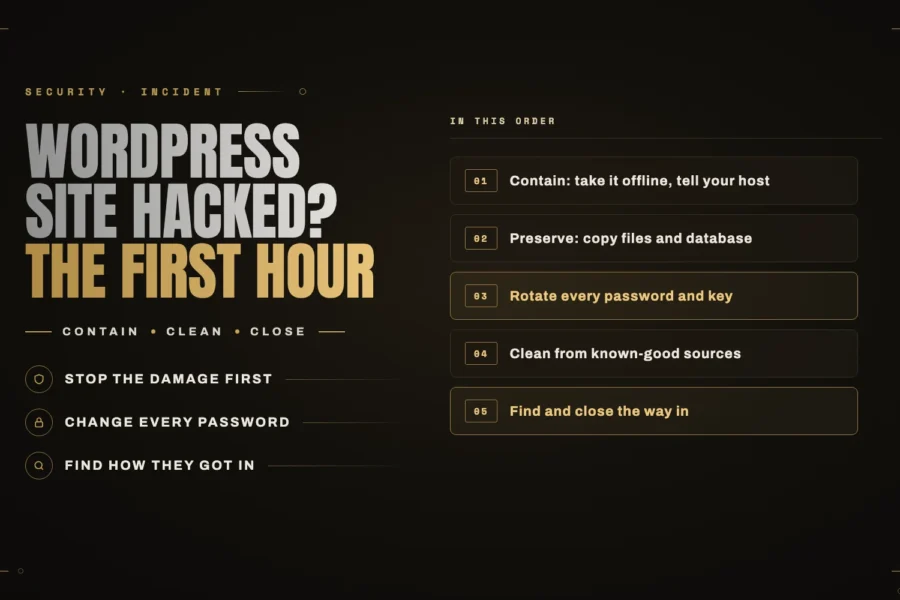
Restore your most recent backup from before the problem started. Your host probably keeps a daily one. If you find strange files, code you did not write, or an admin user you do not recognize, stop and treat it as a hack. Here is what to do in the first hour.
How to find out before your customers do
The worst part of a fatal error is how long it can sit there unnoticed, especially if the recovery email goes to an inbox nobody reads. I built iDownAlert for exactly this. It is a free plugin that emails you the moment a fatal error happens, with the message, the file and line, and the plugin or theme that caused it. So you start at step 3 instead of step 1.
If you have tried all of this and the site is still down, send me the error and I will take a look. Keeping sites from reaching this point is what my maintenance plans are for.