Until now, my background remover plugin had one catch. iTransparent cut backgrounds out right inside the WordPress Media Library, but every image went to remove.bg, so you needed their API key and paid for credits once the free 50 a month ran out.
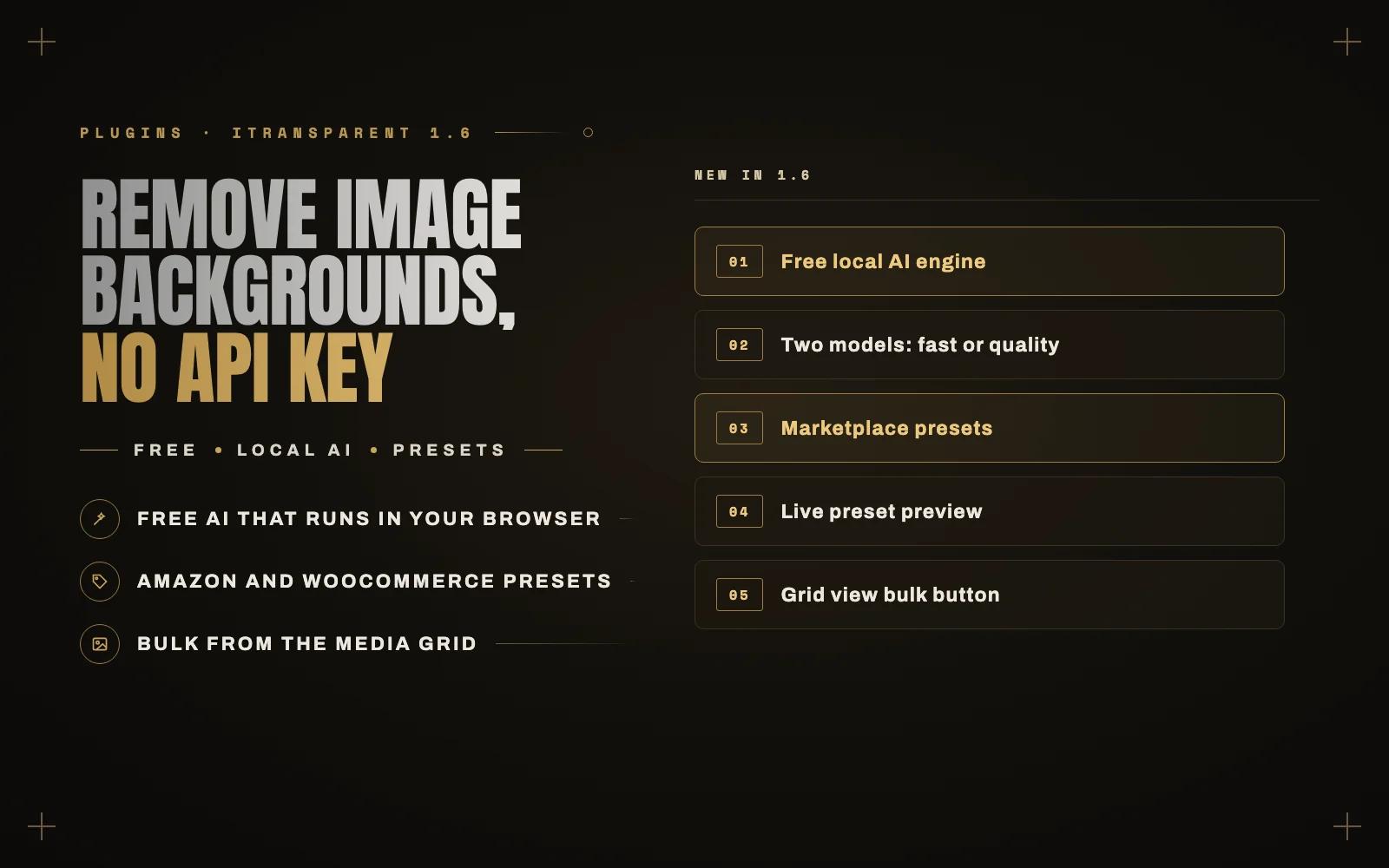
Version 1.6 removes that catch. It now has a free local engine: an open-source AI model that runs in your own browser. There’s no API key, no account and no credits, and your images never leave your site.
It’s free on WordPress.org, and so far over 700 people have downloaded it.
A free AI engine that runs in your browser
Go to Settings, Background Remover, choose the local engine and pick a model:
- Fast (U²-Net-P): a 4.7 MB download. Quick, with simpler edges.
- High quality (IS-Net): a 168 MB download, with cleaner edges. This is the one I recommend for product photos.
Click Download model once. Your site fetches the model file from the open-source rembg project, checks it and stores it in your uploads folder. After that, the cut-out happens on the computer of whoever clicks Remove Background, using WebAssembly. The image is never sent to a third-party service; the finished cut-out is uploaded only to your own site.
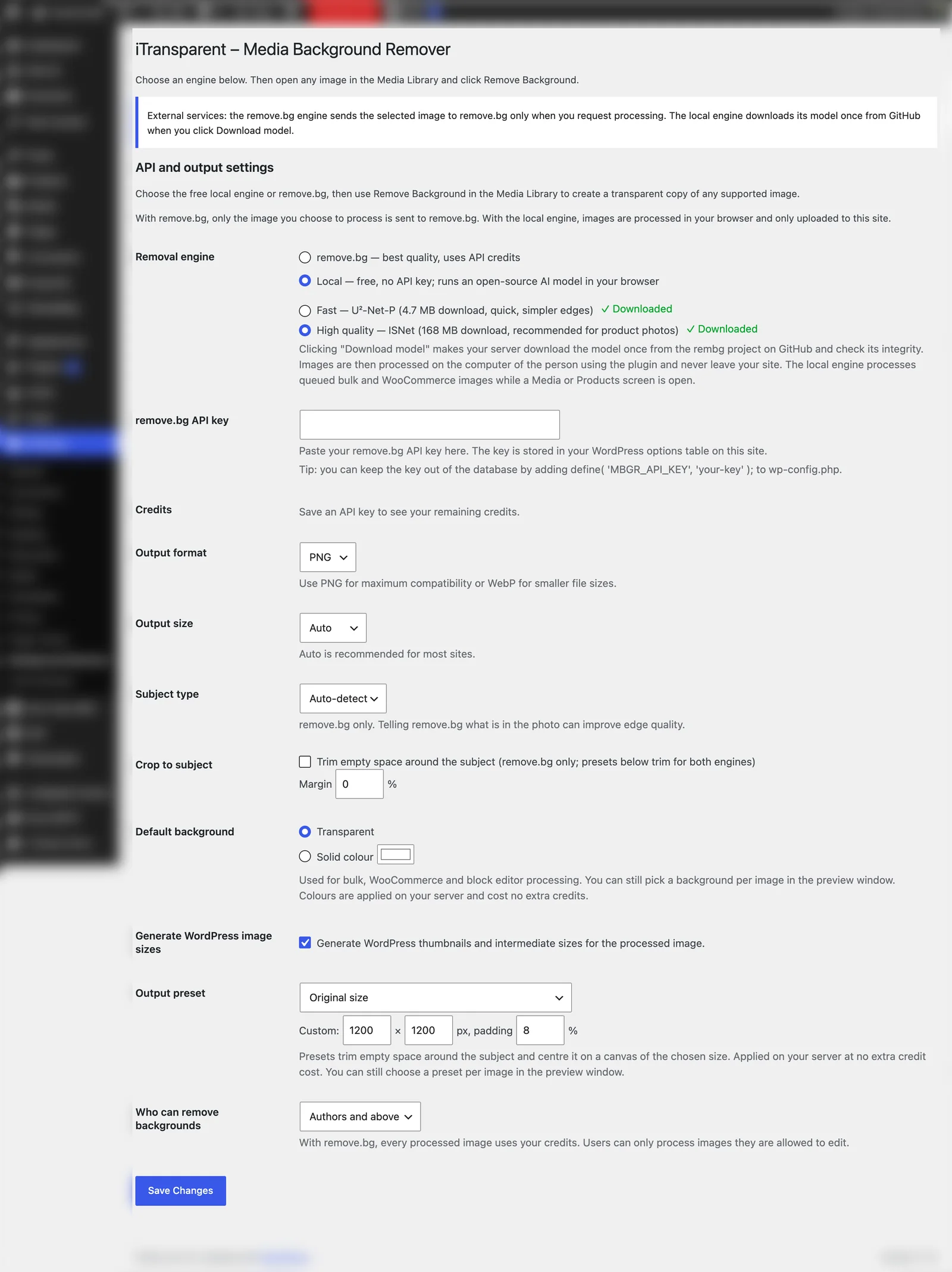
To be honest about the limits: the local models do very well on clear subjects such as products, objects and people on a distinct background. For hair, fur and very fine edges, remove.bg is still more accurate. That’s why the plugin keeps both engines. Use the free one by default and switch to remove.bg when an image needs it.
Marketplace presets: the right size, every time
Getting the cut-out is only half the job. Amazon wants a 2000 × 2000 white image with the product filling 85% of the frame. WooCommerce themes look best with square images. Instagram wants 1080 × 1080 or 1080 × 1350.
iTransparent 1.6 has presets for all of these:
- Square 1000 × 1000 for WooCommerce
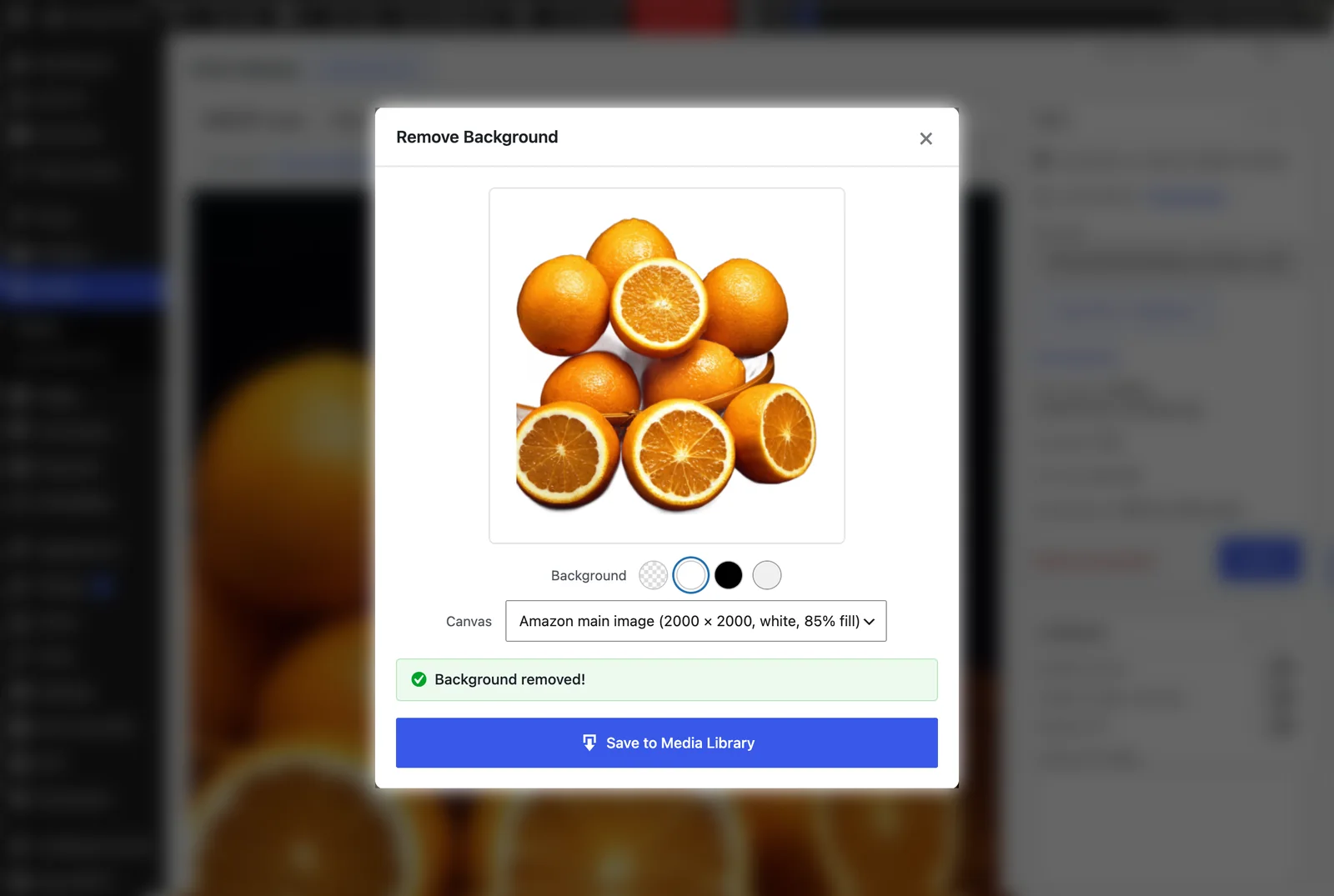
- Amazon main image: 2000 × 2000, white, 85% fill
- Instagram square (1080 × 1080) and Instagram portrait (1080 × 1350)
- A custom canvas with your own size and padding
A preset trims the empty space around the subject, centres it and adds even padding. You pick it in the Remove Background window and see a live preview before you save. Presets are applied on your server, so they cost nothing extra, even with remove.bg.
Bulk from the Media Library grid view
Earlier versions only offered the bulk action in list view. Most people use grid view, so it now has a Remove Background button too. Click Bulk select, pick your images and press the button.
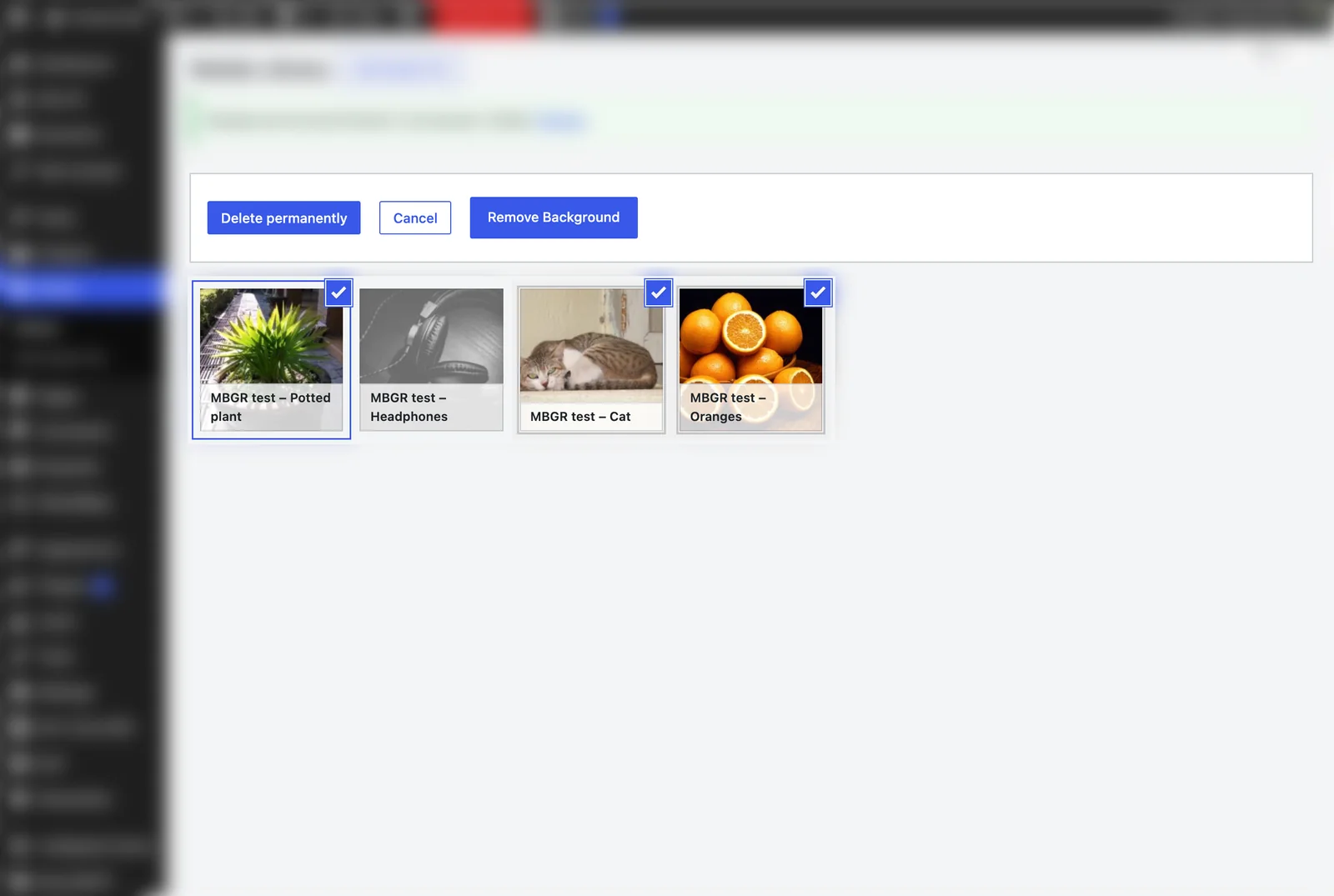
With the local engine, the queue runs in your browser while a Media Library or Products screen is open. With remove.bg, it runs in the background on your server.
Everything from before is still there
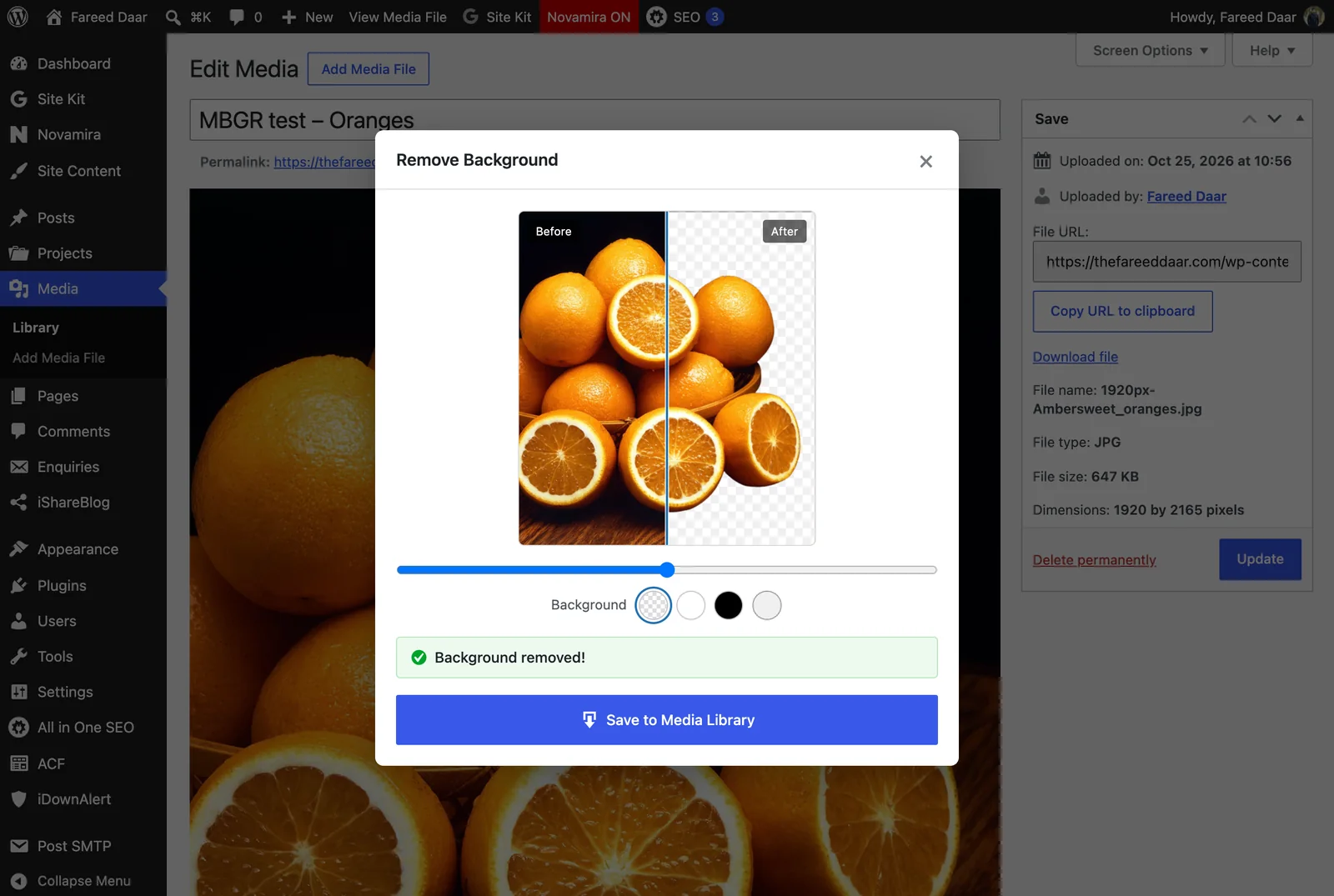
- A before/after slider to check the edges before you save
- Solid colour backgrounds: white, black or any custom colour
- WooCommerce: a product’s image and its gallery in one click, from the product screen
- A Remove background button in the block editor’s Image block toolbar
- Originals never touched: every result is saved as a new image in your Media Library
Coming soon: iTransparent Pro
I’m also working on a Pro add-on for the jobs AI can’t quite finish on its own. It isn’t on sale yet, but here’s what it does:
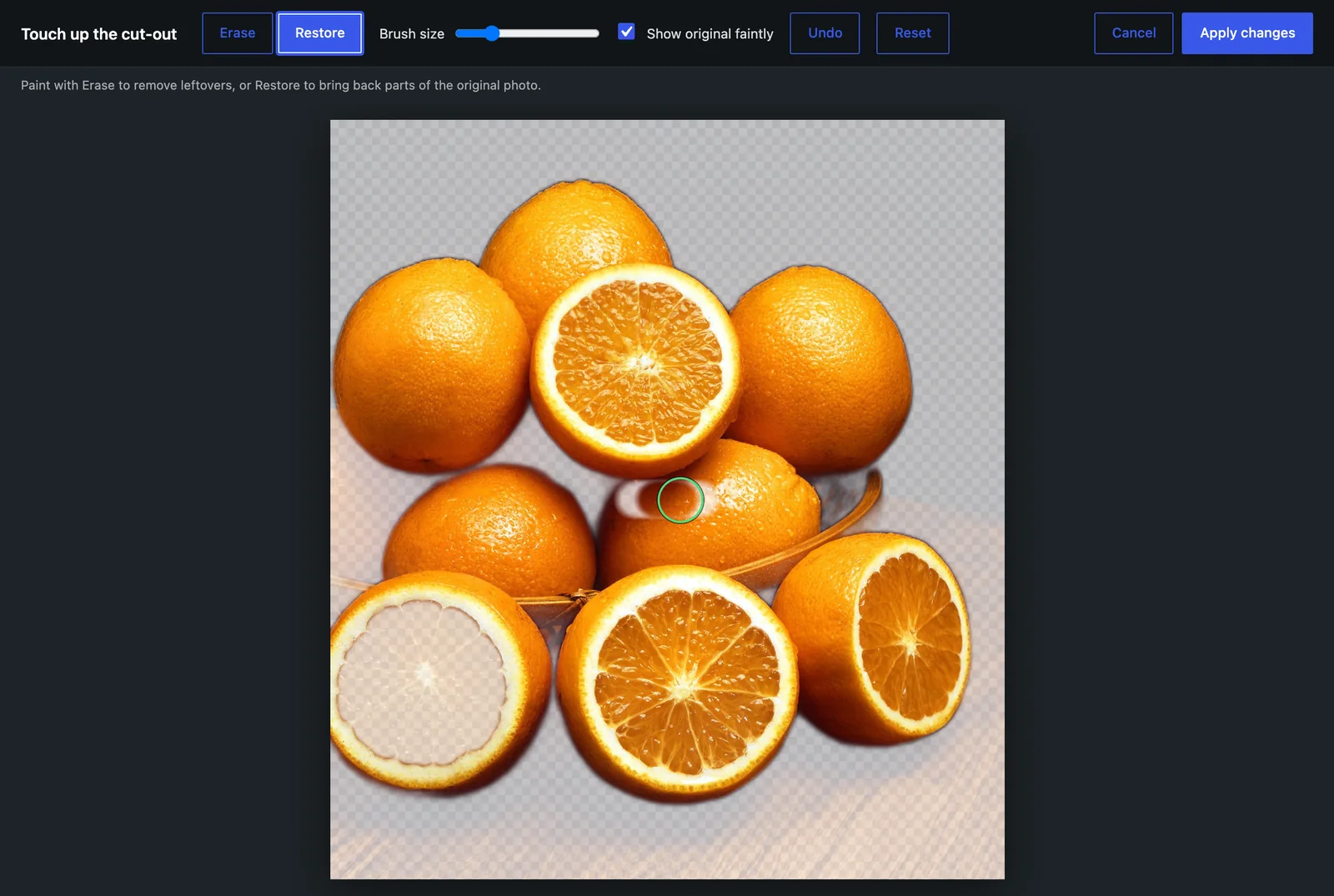
- Touch-up brush: paint with Erase to remove leftover bits of background, or Restore to paint back parts of the subject the AI missed, straight from the original photo.
- Replace original everywhere: swap a cut-out into every place the original image is used, including featured images, galleries, product images, page builders and custom fields, with a one-click Restore that puts everything back exactly as it was.
The free plugin stays free, with no locked features. Pro only adds tools on top.
How to get it
Search for iTransparent under Plugins, Add New in your dashboard, or download it from WordPress.org. It needs WordPress 6.2 or later and PHP 7.4 or later. Then:
- Open Settings, Background Remover.
- Choose the local engine and click Download model.
- Open any image in the Media Library and click Remove Background.
Every screenshot and the full changelog are on the iTransparent page. If you find a bug or want a feature, the support forum is the fastest way to reach me.
If your store needs more than a plugin, such as automatic product photo processing, a custom WooCommerce workflow or a full catalogue cleaned up, that’s the kind of work I do in custom WordPress plugin development. Tell me what you need and I’ll reply within one business day.