Letting AI work on your WordPress site: what WordPress 7 changed, and how to do it safely
WordPress 7 gave AI assistants a standard way to act on your site. That is genuinely useful, and it also means an assistant can do anything the account it uses can do. Here is how it works and the permissions to set before you connect one.
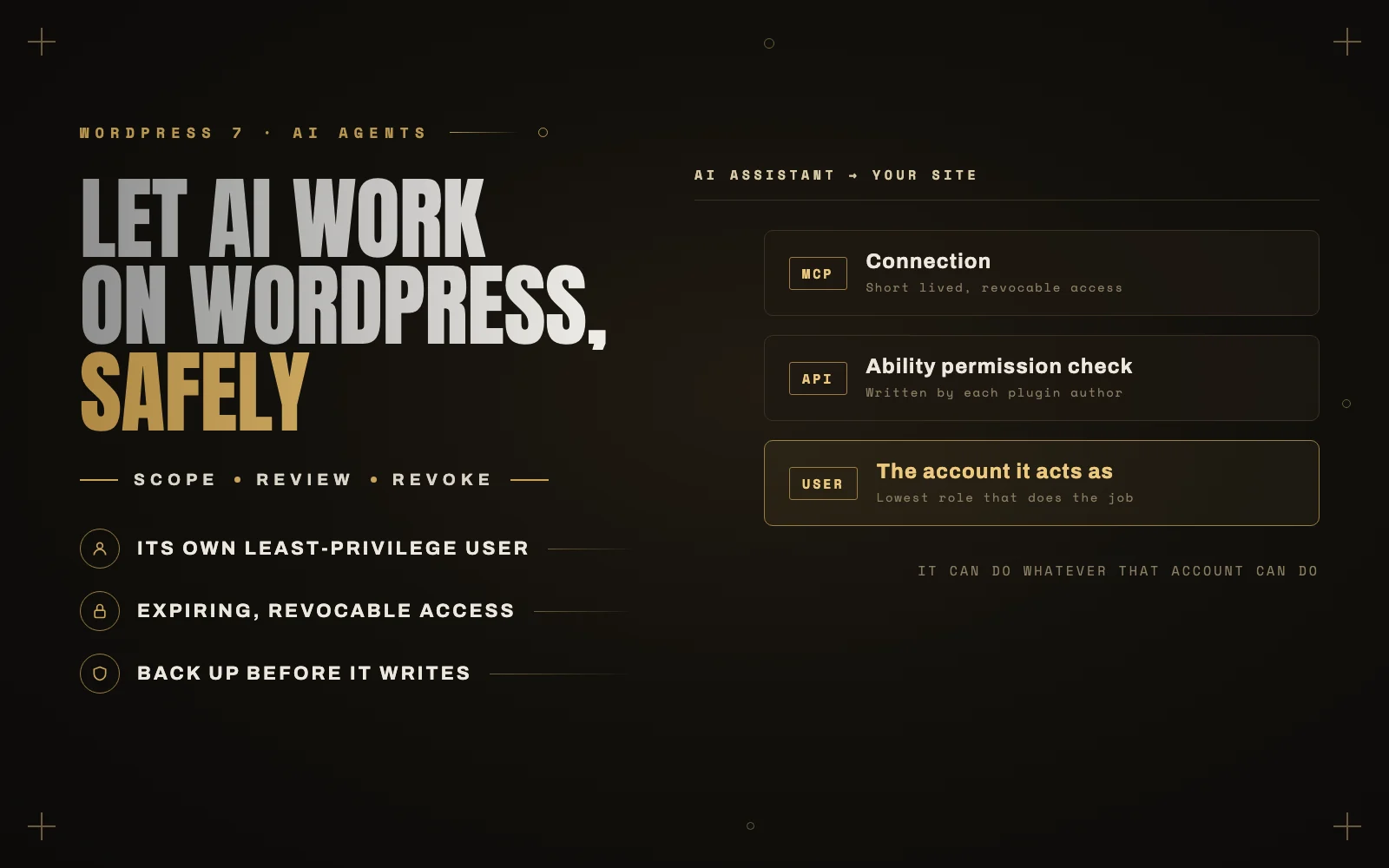
Part of my maintenance work now happens through an AI assistant connected directly to the site. It can read the content, check plugin versions, find pages with missing SEO fields and draft fixes, while I review what it proposes before anything changes.
A year ago that needed a custom setup on every site. WordPress 7 made it standard, which is why “WordPress MCP” has gone from a developer term to something site owners are searching for. The capability is real. So is the risk, and most of the guides skip that part.
What WordPress 7 actually added
Three pieces arrived in core, and they work together.
- The Abilities API. Plugins and themes can now describe the things they can do as named abilities, such as “create a post” or “update a product price”. Each one declares what input it expects, what it returns, and a permission check that decides who may run it. It appeared experimentally in WordPress 6.9 and became part of core in 7.0.
- The MCP Adapter. MCP, the Model Context Protocol, is the standard AI assistants like Claude, ChatGPT and coding tools such as Cursor use to discover and call tools. The adapter turns your site’s abilities into tools those assistants can see and use.
- The AI Client. A provider neutral layer that lets plugins call whichever AI model you choose, rather than each plugin bundling its own.
Put simply: plugins describe what they can do, the adapter publishes that list, and an assistant you connect can pick from it.
WordPress 7.2 is due in early December. Its roadmap focuses AI work in the official AI plugin, where features have to prove themselves before they move into core, and also lists security work that matters here, including re-authentication for sensitive actions and hardening of Application Passwords.
What it is good for, and what it is not
Used well, a connected assistant is an excellent junior for repetitive, checkable work:
- Auditing hundreds of posts for missing meta descriptions, broken links or outdated information.
- Bulk updates you would otherwise do by hand, like adding alt text or fixing categories.
- Pulling reports: which plugins are out of date, which pages have no internal links.
- Drafting changes for you to review, rather than making them.
It is not good at judgment calls with no clear right answer, at design, or at anything you would not be able to check afterwards. And it should not be publishing to a live site unsupervised.
The part most guides skip
An assistant connected to WordPress acts as a user, and it can do whatever that user can do. Nothing more clever than that is going on.
The most common way to connect one is an Application Password, created from your own profile. If you are an administrator, the assistant is now an administrator. It can install plugins, create users, change the site address and delete content, and it will do those things if a confused instruction or a malicious page it reads tells it to.
There is a second layer. Each ability has its own permission check, written by whoever wrote the plugin. A careless plugin can register an ability that writes or deletes data with a check that lets any logged in user through. Your account role does not protect you from a plugin that never asked.
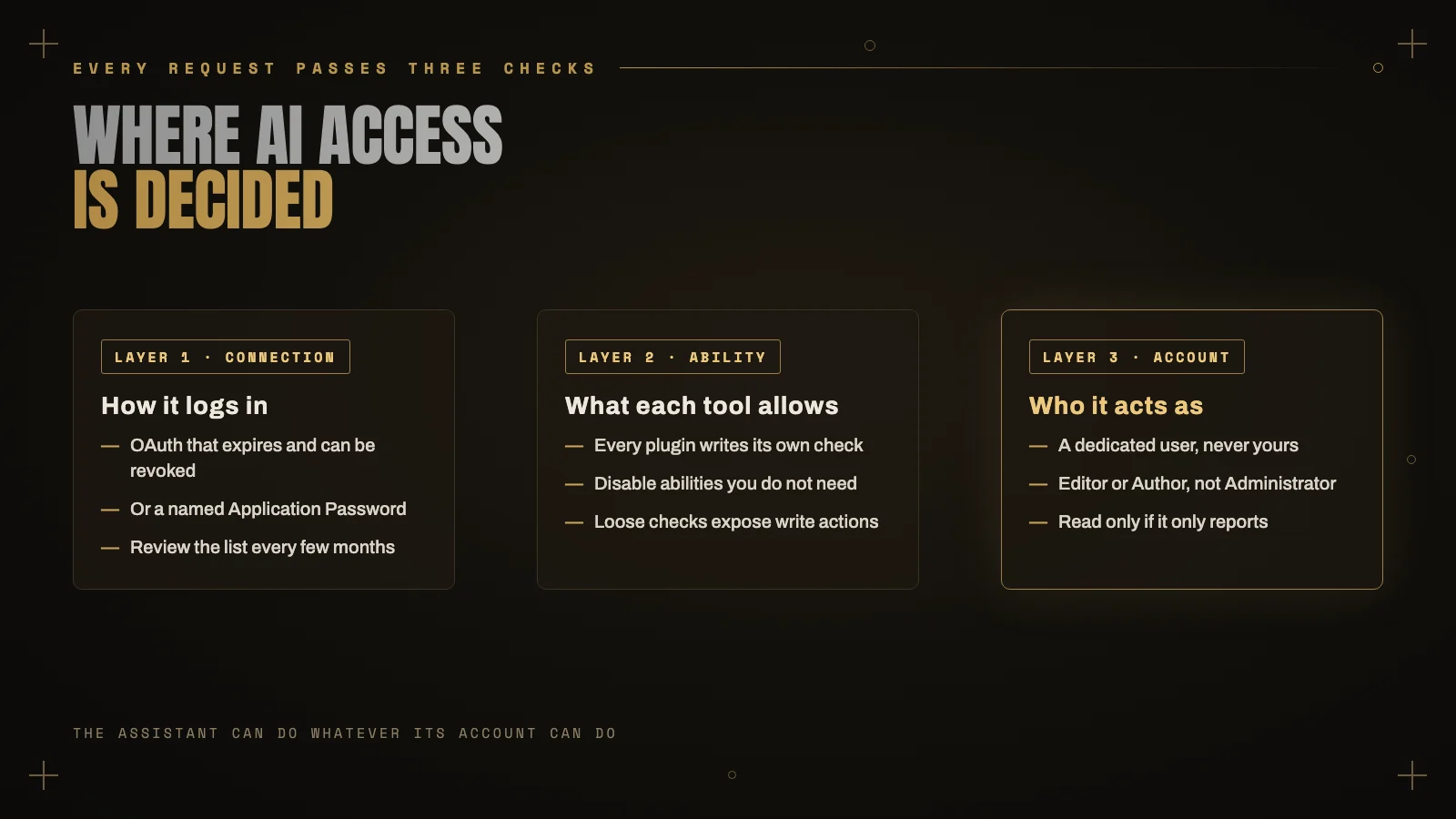
An AI assistant on your site is a user with a very fast keyboard. Give it the access you would give that person.
How I set it up on client sites
Give it its own account
Never connect an assistant as yourself. Create a separate user for it with the lowest role that does the job. Editor is enough for content work. Author is enough if it only needs to draft its own posts. If it is only reading and reporting, start there and give it nothing that writes.
Prefer short lived, revocable access
Where the connector supports it, use an OAuth login that expires and can be revoked, rather than a password that lasts forever. If you do use an Application Password, name it clearly, and review the list every few months under Users, Profile, Application Passwords. Revoke anything you do not recognize.
Know what you are exposing
Each plugin you install may add abilities. Before you connect an assistant, check which abilities are actually published to it, and switch off any you do not need. Fewer tools means fewer ways for it to go wrong.
Test on staging, back up before writing
Run new workflows on a staging copy first. Before any session where the assistant will change things on the live site, take a fresh backup. Restoring from a backup is boring. Explaining to a client why every product price changed is not.
Keep WordPress and plugins current
An AI connection does not replace ordinary security. WordPress 7.1.3, released on October 6, fixed seven security issues. A single vulnerable plugin can undo all the careful scoping above, so update promptly and remove plugins you are not using.
Review before it changes anything
The workflow that works best for me is simple. The assistant proposes, I approve, then it applies, and afterwards it checks the result. For anything that touches many pages or anything that cannot be undone, I want to see the list before it runs, not after.
Before you connect an assistant
- Create a dedicated user with the lowest role that will do the job.
- Use expiring, revocable access where you can.
- Check which abilities are exposed and disable the rest.
- Try new workflows on staging first.
- Back up before any session that writes to the live site.
- Keep core and plugins updated, and review access every few months.
If you want an AI assistant working on your site but would rather someone else set up the access properly first, I do exactly that as part of WordPress maintenance and development. Tell me what you want it to do, and I will tell you the least access it needs to do it.
Keep reading
 AI Search
How to get your business recommended by ChatGPT, Gemini and Google AI Mode
When someone asks an AI assistant for a recommendation, it has to find you and then choose you. Here is what each… Read article ↗ WooCommerce
AI agents can now shop for your customers. Is your store ready?
Shoppers can now find, compare and buy products inside Google's AI Mode and Gemini without ever opening your site. Here is what… Read article ↗ AI Search