Every WordPress problem gets smaller if you have a good backup. A hack, a bad update, a deleted page, a host that disappears: with a backup, each is an annoying afternoon. Without one, each can be the end of the site.
Most sites have some kind of backup. Far fewer have one that would actually work when needed. So this post covers how to make a backup, and then the part most guides skip, which is proving it works.
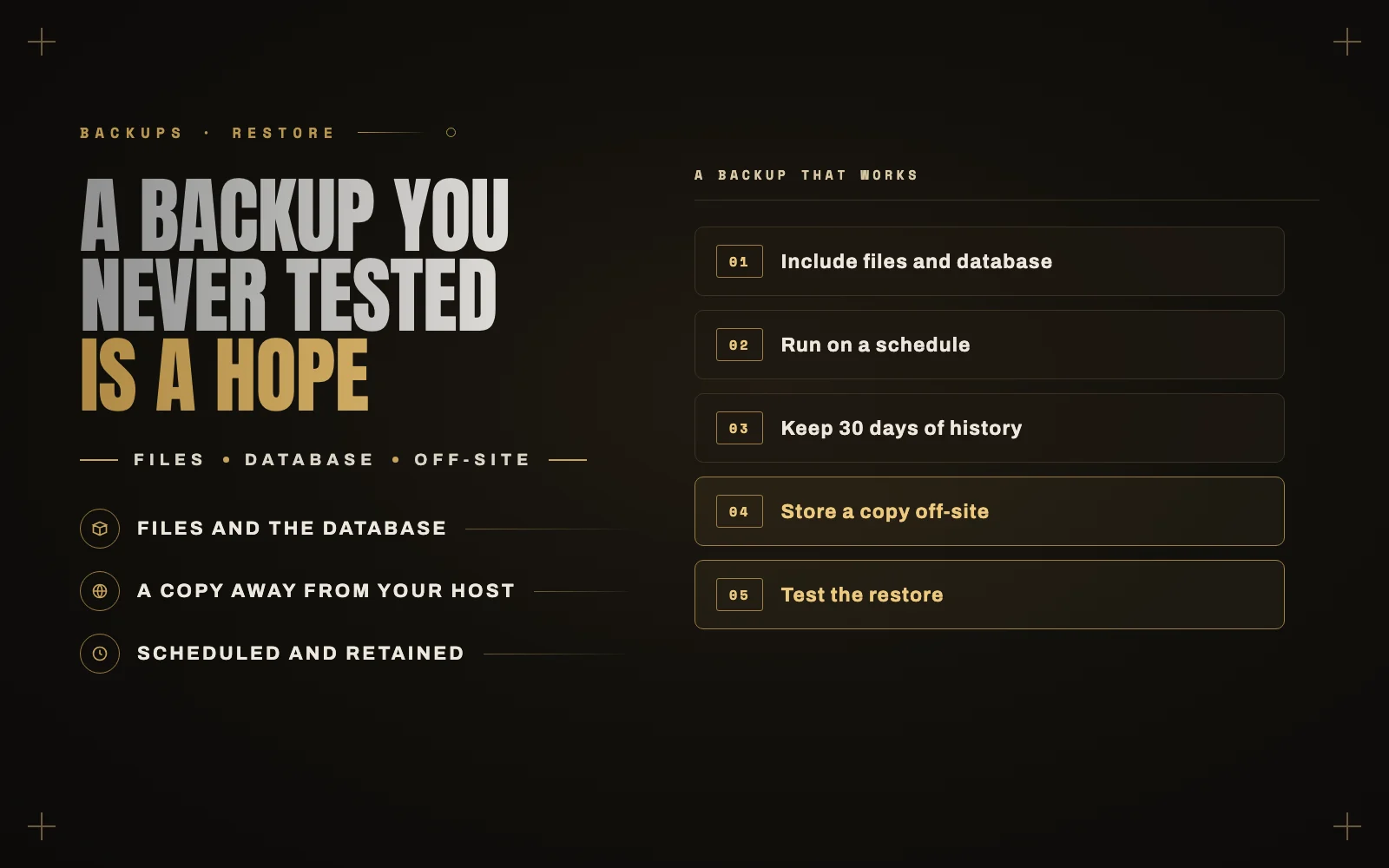
What a backup has to include
A WordPress site is two things, and you need both:
- The database: posts, pages, users, settings, orders and form entries.
- The files: your
wp-contentfolder (themes, plugins and uploaded images), pluswp-config.php.
A database without the files gives you text and no images. Files without the database give you an empty shell. WordPress core itself can always be downloaded again, so it matters least, but a full backup usually includes it anyway.
Three ways to back up
Your host
Most decent hosts make automatic daily backups, and you can restore them with a click. Check your hosting panel now. Find out how far back they go, and whether you can download them.
This is a good first layer, but it should not be your only one. Those backups usually live with the same company as your site. If your account gets suspended, hacked or lost, they can go with it.
A backup plugin
Plugins such as UpdraftPlus, Duplicator or BlogVault run on a schedule and send copies to storage you control, such as Google Drive, Dropbox or Amazon S3. For most small sites, this plus your host’s backups is the right setup.
Pick one plugin and set it up properly. Look for scheduled backups, a remote storage destination, and a restore process you understand. Backup files left only in your own wp-content folder are not much of a backup, for the same reason as above.
By hand
This is worth knowing for a one-off, for example before a big change:
- In phpMyAdmin, select your database and use Export to download a
.sqlfile. - Using your file manager or SFTP, download
wp-contentandwp-config.php. - Store them together in a dated folder.
This is too easy to forget for regular use, so do not rely on it.
How often should you back up?
Base it on how much work you could stand to lose.
- Brochure site that rarely changes: weekly, plus before any updates.
- Blog posting a few times a week: daily.
- WooCommerce store or membership site: daily at the very least, and more often if orders come in all day. Restoring last night’s backup on a store means losing today’s orders. Real-time backups exist for this reason.
Keep at least 30 days of history. Hacks and quiet breakage are often found weeks after they happen, and a backup taken after the damage just preserves the damage.
Where to keep it
The old 3-2-1 rule still works: three copies, on two kinds of storage, with one off-site. For a WordPress site, that usually means the live site, your host’s backup, and a copy in your own cloud storage on a separate account.
Keep that storage login separate and protected with two-factor authentication. A backup holds your whole site, including your customers’ details, so treat it with the same care as the site itself. Also think about who can reach it. If someone can get into your site and also delete your backups from there, you have one weak point instead of three copies.
Test the restore
This is the step that separates a backup from a hope. Backups fail without telling anyone: the storage fills up, a token expires, a file comes out corrupted, or the job stopped running in March.
Here is a test you can do in under an hour:
- Create a staging site from your host’s panel, or a local copy with a tool like LocalWP.
- Restore your latest backup to it.
- Log in, open some pages, check images, and if it is a store, look at recent orders.
- Note how long it took. That is your real recovery time.
Do this once a quarter. Never test a restore over your live site.
Before you update anything
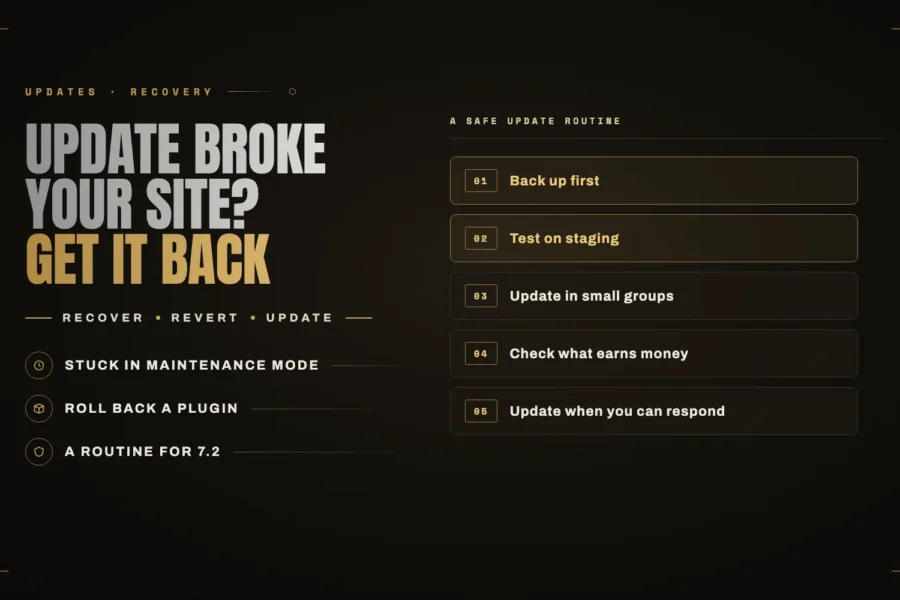
Run a fresh backup before major updates, big plugin changes or any change to PHP. Even when a backup runs nightly, that one gives you a clean restore point from minutes before the change. With WordPress 7.2 due on December 8, this is a good month to set your schedule straight.
What to do this week
- Find out what your host backs up, and how far back it goes.
- Set up a plugin that sends backups to your own storage.
- Do one test restore.
- Set up alerts for when something goes wrong, so a problem does not sit there for weeks. My free plugin iDownAlert covers errors, file changes and low disk space, and running out of disk is one of the quiet ways backups die.
Test restores are the first thing I check when comparing care plans. Here is what a WordPress maintenance plan should include, and the questions to ask any provider.
Taking care of this is a core part of my WordPress maintenance plans, including the test restore. If you would like to know whether your current backups would really work, send me a note. And if you need one right now because something has gone wrong, start with what to do in the first hour after a hack.