If your site went down right now, how long would it take you to find out?
For most small businesses, the honest answer is “whenever somebody mentions it”. An outage that starts at 11 p.m. can cost a full night of orders and leads, and nobody says a word, because most visitors just leave.
Uptime monitoring fixes that for free, in about ten minutes. There is one thing most people get wrong, though.
Why a plugin alone is not enough
A plugin runs on your server. If your server is off, the plugin is off too, and it cannot tell you anything. No plugin can email you from a dead server, whatever its description suggests.
So you need something outside your site that checks it from the internet every few minutes and warns you when it stops answering.
But outside monitoring has a blind spot of its own. It can tell you the site is down. It cannot tell you why, and it misses a lot of the problems that happen while the server stays up. A page can return a normal “200 OK” status while showing an error message, and a broken checkout does not look like downtime at all.
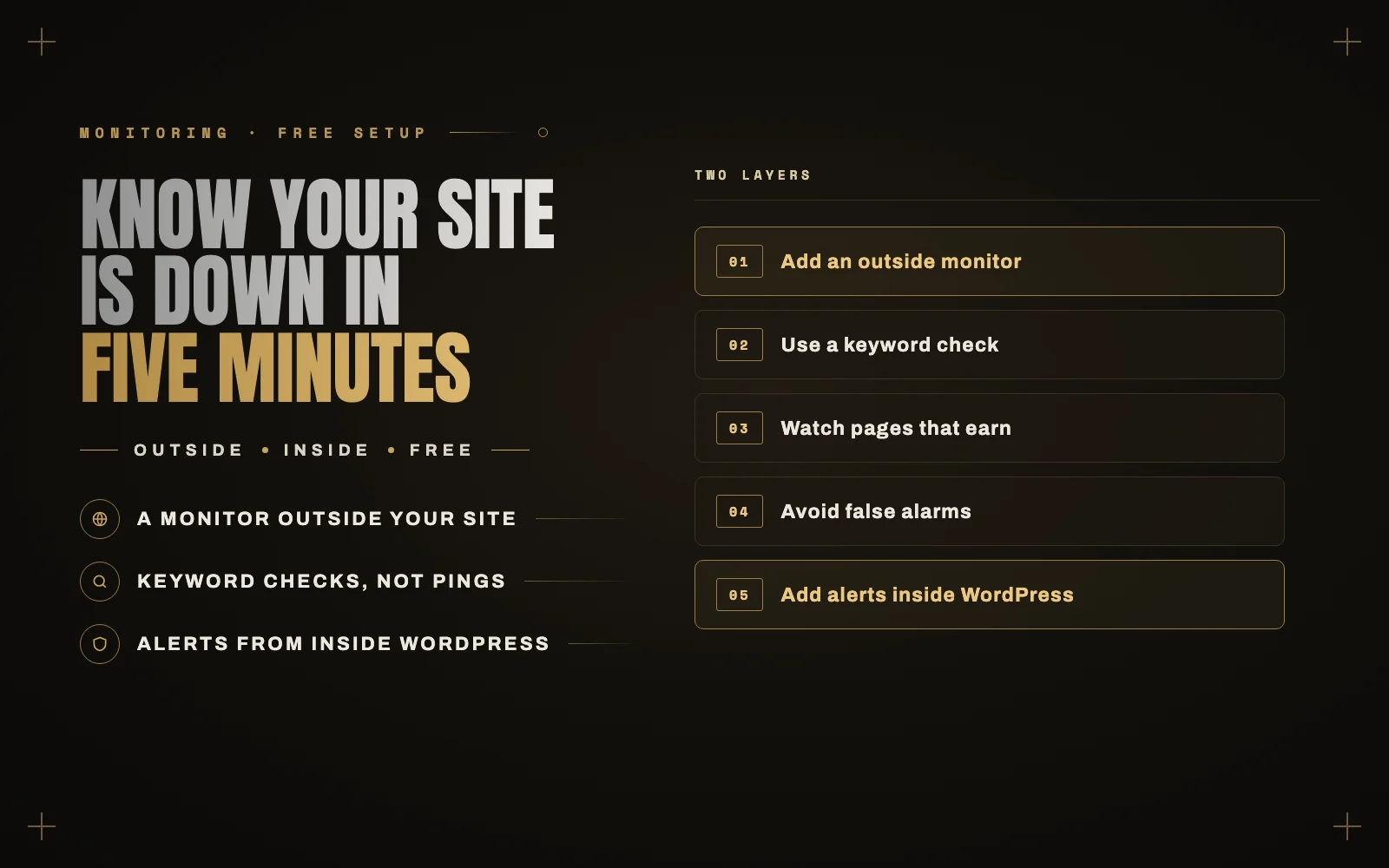
You want both layers: one outside the site, and one inside it.
Layer 1: an outside monitor
I point people to UptimeRobot because the free plan covers most small sites. At the time of writing, it includes 50 monitors at 5-minute intervals, keyword monitoring, and commercial use. Other good options exist, and the setup is similar.
- Create a free account.
- Add a new monitor and enter your homepage address.
- Set the interval to 5 minutes.
- Add your email as the alert contact, and ideally a second person or a phone alert too.
That is a basic check. It takes minutes, and it already beats finding out from a customer.
Use a keyword check, not just a ping
The default check asks “did the server answer?” Plenty of broken sites answer. A hacked page, a host’s “account suspended” notice or a cached error can all look fine to a basic check.
A keyword monitor looks for a word that should be on the page, and alerts you when it goes missing. Pick text that only appears when the site is healthy, such as a phrase in your footer. It is a small change that catches a lot more.
What to monitor
Do not stop at the homepage. Add monitors for the pages that earn money:
- Homepage, because it is what everybody sees.
- Your main landing page or contact page, especially if you pay for traffic to it.
- The shop or checkout page, if you sell online.
- Your SSL certificate, if your monitor offers it. Expiry errors scare visitors away just like downtime does.
Do not monitor every page. If everything alerts, nothing gets attention.
Avoiding false alarms
Alerts you learn to ignore are worse than no alerts at all. A few settings help:
- Allow a confirmation delay if your monitor offers one, so one slow response does not trigger an alert.
- Exclude your monitor from security tools. Firewalls sometimes block monitors, which looks like an outage. Allowlist its IP addresses if you get false alarms.
- Use maintenance windows so planned work does not page you.
- Send alerts somewhere you actually look. A mailbox you check twice a week does not count as monitoring.
Layer 2: something inside the site
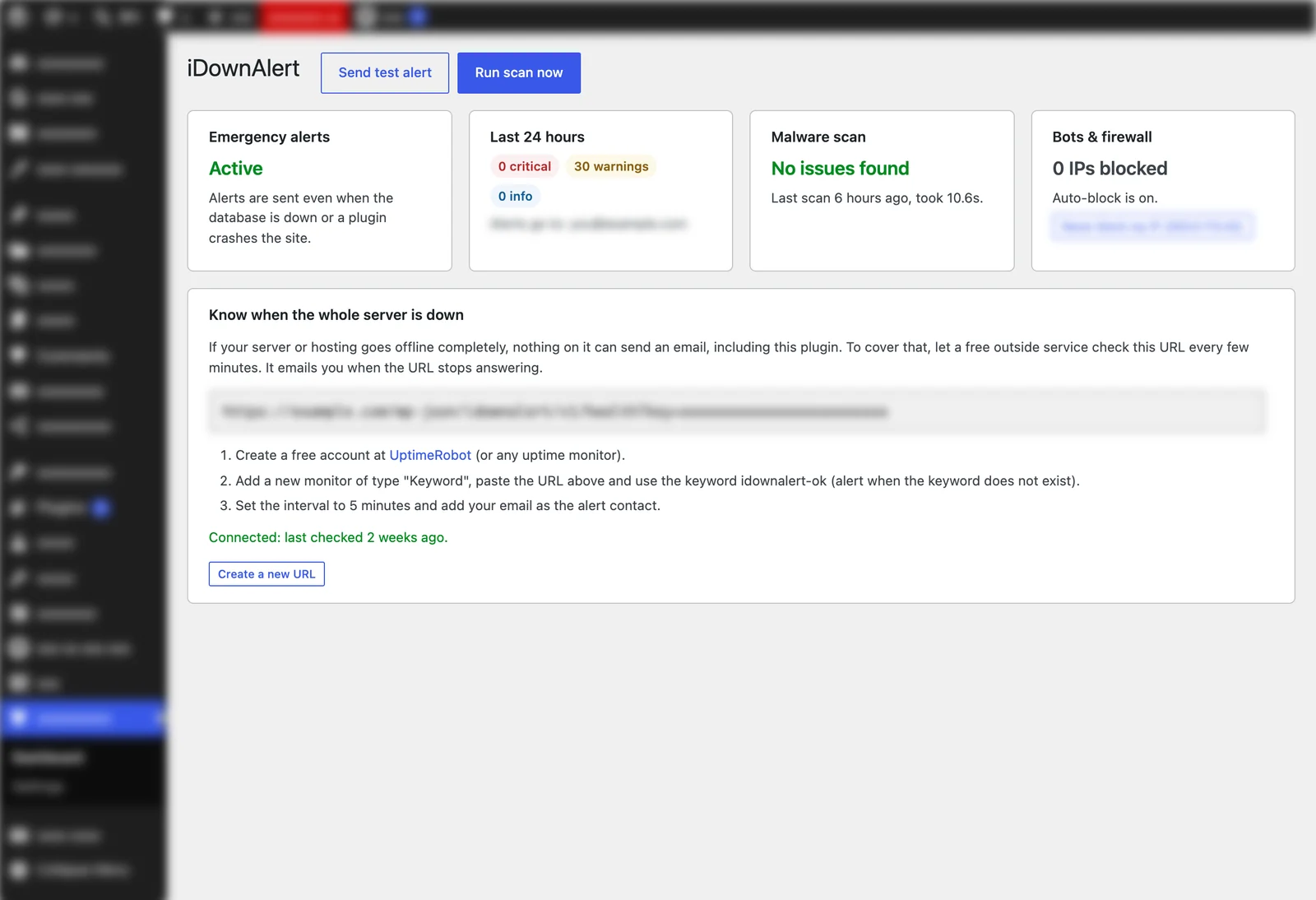
This layer catches what an outside check can’t see, and it tells you the cause. It is the reason I built iDownAlert, a free plugin that alerts you to fatal errors, database outages, malware and file changes, brute-force bots, and risky changes like a new administrator account. For a fatal error, you get the file, the line and the plugin responsible.
It also ties the two layers together. iDownAlert gives you a private heartbeat URL that you add to UptimeRobot as a keyword monitor, using the keyword idownalert-ok and alerting when that keyword does not exist. The URL answers with that keyword only when WordPress is really working, and with an error otherwise, so it is a stronger check than loading a homepage that might be served from a cache. The dashboard walks you through it, and shows when the monitor has connected.
When the alert comes in
Have a plan before it happens:
- Check the site from your phone with Wi-Fi off, in case it is your connection.
- Look at your host’s status page.
- If you see an error message, go to the matching fix. Start with my guides for the white screen and critical error, the database connection error and too many redirects.
- If you do not recognize what you see, read what to do in the first hour after a hack.
Save your host’s support link and your login details somewhere you can reach when your site is down.
Look at the numbers once a month
Your monitor keeps a history. Frequent short outages usually point to an overloaded plan, and they are worth raising with your host, or using as a reason to change hosts. Those small drops are easy to miss when you only check the site when you remember to.
Monitoring is only useful if someone acts on the alert. If you are thinking about handing that over, here is what a WordPress maintenance plan should include.
If you would like someone else to watch your site and respond when the alert fires, that is what my WordPress maintenance plans are for. Get in touch and tell me about your site.