You clicked Update, or an automatic update ran overnight, and now the site is broken. It might be a white page, a 500 error, a mangled layout, or a message saying the site is “briefly unavailable for scheduled maintenance”.
First, a warning about the wrong lesson. Do not decide to stop updating. Attackers are actively going after sites that fall behind, and skipped updates cause far more damage than the occasional bad one. The answer is a safer routine, and I will get to that after we get your site back.
If the site is stuck in maintenance mode
“Briefly unavailable for scheduled maintenance. Check back in a minute.” If it has been more than a few minutes, the update was interrupted.
While updating, WordPress creates a file called .maintenance in your site’s root folder. When an update fails partway, that file stays there. Delete it in your file manager (you may need to turn on “show hidden files”) and the site returns.
Then go to Dashboard, Updates, and run the unfinished update again, because the plugin may be half installed.
If you get a white page or critical error
Work out which update did it. If you updated several things at once, your recovery email or your error log will name the culprit. My guide to the white screen and critical error walks through that, including how to switch off a plugin without the dashboard.
If you get a 500 error
A 500 error is the server saying something failed without saying what. After an update, the usual suspects are:
- A damaged
.htaccessfile. Rename it to.htaccess-old, and see if the site loads. If so, go to Settings, Permalinks and click Save to create a new one. - A plugin crash. Rename the
wp-content/pluginsfolder to test this, then narrow it down. - A PHP memory limit. Check your host’s error log, which is usually in the hosting panel.
If the site loads but looks wrong
Clear the cache before anything else. A caching plugin, your host and your CDN can each hold on to old CSS and JavaScript, and this one step solves many “broken layout” reports. Check in a private window.
If it still looks wrong, it is often a plugin or theme that has not caught up. Check that plugin’s support forum on WordPress.org, because if an update broke something, other people are already there, and a fix may be on the way.
How to roll back a plugin or theme
Once you know the cause, go back to the last working version.
- From the dashboard: the free WP Rollback plugin lets you pick an earlier version of anything from the WordPress.org directory.
- By hand: on a plugin’s WordPress.org page, open Advanced View and download an earlier version. Then replace the plugin’s folder through SFTP or your file manager.
- Premium plugins: download an earlier version from your account with the vendor, or ask their support.
After rolling back, pause automatic updates for that one plugin so that it does not update itself overnight and break again. Check back in a week or two. If the update you rolled back was a security release, do not stay behind for long.
WordPress itself has a safety net here too. When an automatic plugin update causes a fatal error, WordPress can roll that plugin back on its own. Don’t count on it, because it only covers some failures and not, for example, a layout that broke.
When to restore a backup
If you cannot quickly tell what happened, or if a core update went badly, restore the backup from before the update. It is often the fastest route. On a store, remember that restoring discards orders placed since that backup, so export them first or ask your host about restoring files only.
If you do not have a backup, your host very likely does, so ask them. Then read how to back up WordPress properly, so this is the last time you are in that position.
How to update safely
This is the routine I use. It takes a few minutes for a small site.
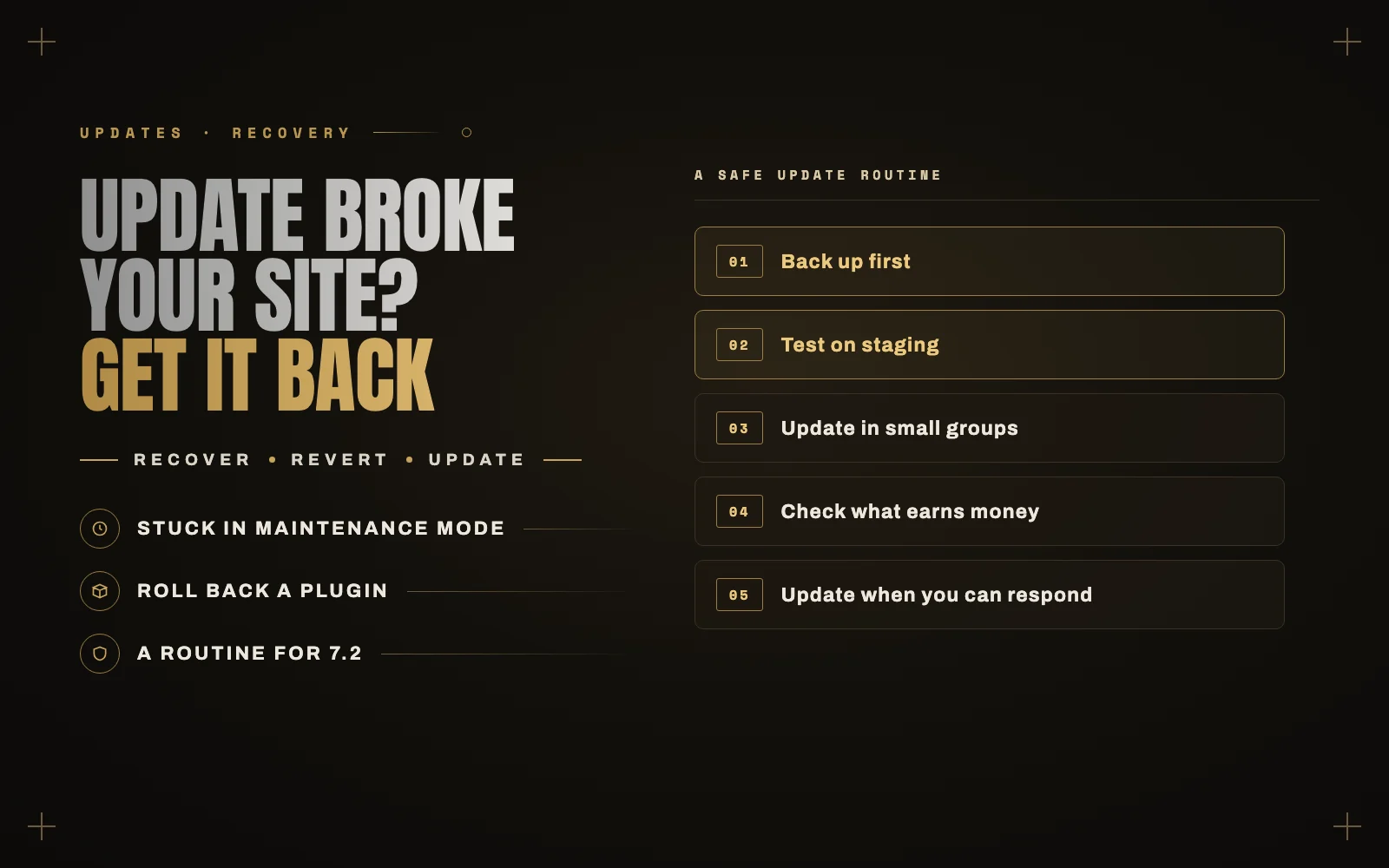
- Back up first, even if you have nightly backups.
- Update on a staging copy if the site makes money. Many hosts create one with a click.
- Update in small groups. Doing plugins one at a time on a busy site means you always know which one did it.
- Read the changelog for anything with a major version jump, such as 4.x to 5.0.
- Test what matters: the homepage, a form, and on a store, a full test checkout.
- Update when you can respond. Not at 5 p.m. on a Friday.
Security releases are the exception to some of this. Back up, and apply them promptly.
What to leave on automatic
WordPress minor and security releases should stay automatic. Stable, well maintained plugins are fine too. Keep manual control over the things a site depends on: WooCommerce, your page builder, and anything with custom code around it. If a plugin has gone two years without an update, consider replacing it.
Get ready for WordPress 7.2
WordPress 7.2 is planned for December 8. If you have a custom theme or older plugins, test on staging now rather than after the update reaches your live site. Check your PHP version at the same time, and I have a guide on how to update PHP safely.
Know right away when an update goes wrong
An automatic update can break a site at 3 a.m., and you might not find out until the phone rings. My free plugin iDownAlert emails you about fatal errors and failed automatic updates, and tells you which plugin caused the error. Pair it with outside uptime monitoring, and you will hear first.
Tested updates are the core of a good WordPress maintenance plan. If your current plan just clicks “update all”, it is worth comparing.
If you would rather not think about updates at all, that is what my WordPress maintenance plans cover: backups, updates tested on staging, and a person to call. If your site is broken right now, tell me what happened.