Most WordPress maintenance plans are written for brochure sites. Update the plugins, check the homepage loads, run a backup, send a report. That is fine for a site that changes once a month.
A WooCommerce store is different. Orders, payments, stock levels and customer accounts change every minute. A broken homepage is embarrassing, but a broken checkout costs money every hour, and often nobody notices until a customer emails to say they could not pay.
I wrote a general guide to WordPress maintenance plans last month. This post covers what a store needs on top of that, so you can tell whether a plan was actually built for WooCommerce or just has “WooCommerce” in its name.
Why a store needs more than a normal plan
Three things make a store harder to look after:
- The data never stops changing. On a brochure site, yesterday’s backup is almost as good as today’s. On a store, restoring yesterday’s backup deletes every order placed since.
- More moving parts. Payment gateways, shipping, tax, subscriptions, emails and stock all come from different plugins, and they all have to agree with each other at checkout.
- Problems are silent. A checkout that fails for one payment method, or order emails that stop sending, do not show up on the homepage. The site looks fine while sales quietly drop.
What a WooCommerce maintenance plan should include
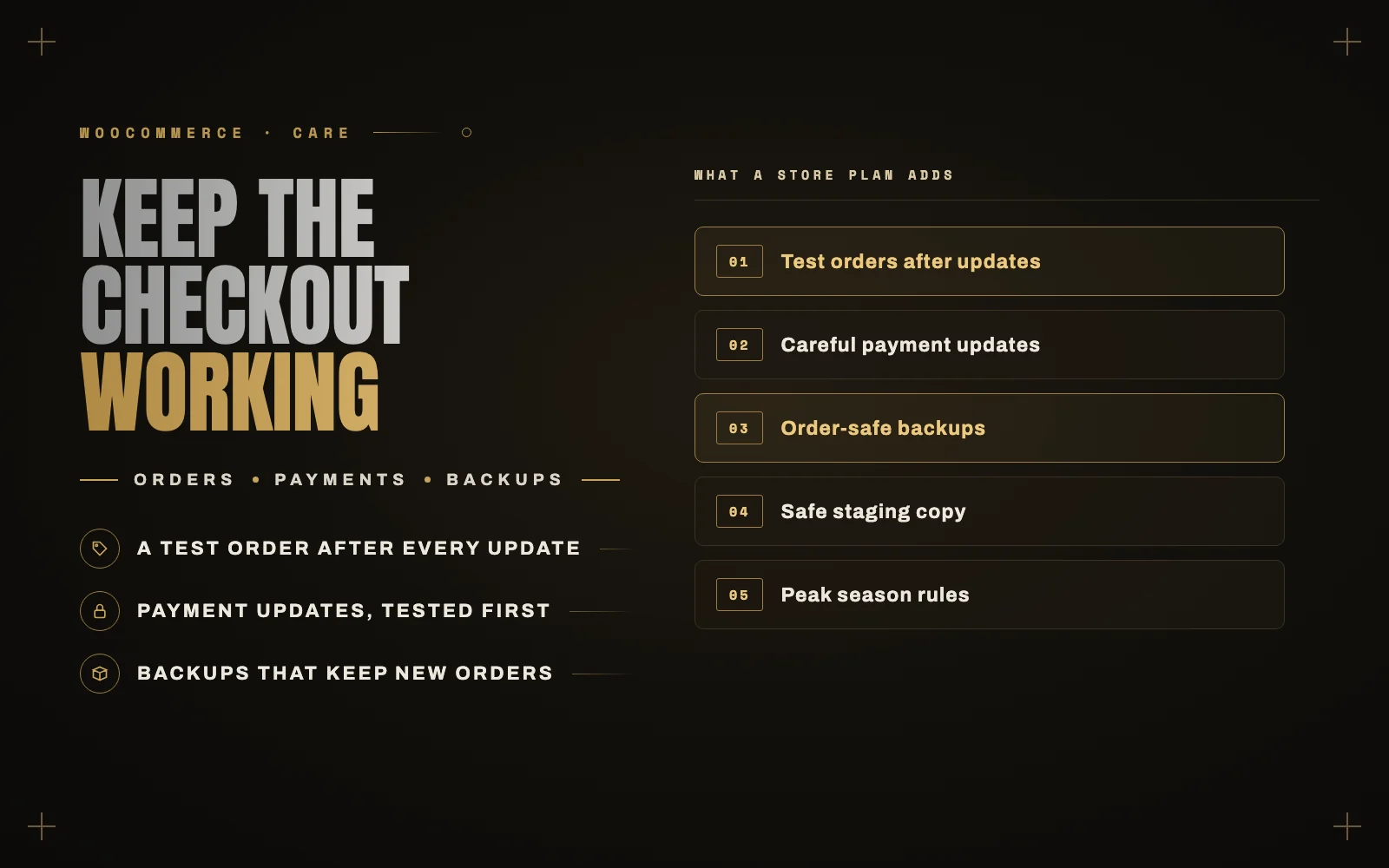
A test order after every update
This is the single most important item, and the one most plans skip. After plugins are updated, someone should add a product to the cart, go through checkout and complete a payment, in test mode on staging and then on the live store.
Clicking around the homepage proves nothing. The checkout is where updates break things, because that is where the most plugins meet.
Careful payment gateway updates
Payment plugins get security fixes like everything else, and they matter more. Last week WooCommerce released a security update for its Stripe Gateway that fixed issues it said could have allowed fraudulent purchases. I covered it in this week’s WordPress news.
A good plan applies updates like that quickly, but tests them first, because the new version also needed a newer WordPress. Updating a payment plugin blindly on a busy evening is how stores end up unable to take money.
Backups that do not lose orders
Ask how a restore would work on your store. If the answer is “we roll back to last night’s backup”, ask what happens to today’s orders.
A store needs frequent database backups, kept off-site, and a provider who knows how to restore files and code without overwriting new orders and customer accounts. I explain the basics in how to back up a WordPress site. For a store, the database is the part that matters most.
A staging copy that cannot charge or email customers
Every update should be tried on a staging copy first. But a copy of a store contains real customers, real email addresses and sometimes live payment keys. A careless staging site can email customers about fake orders, or even try to charge them.
The plan should switch payments to test mode and stop outgoing emails on staging. If you use subscriptions, renewals must not run there either.
Scheduled actions and order emails
WooCommerce runs a lot of work in the background: order emails, stock updates, subscription renewals and webhooks. You can see that queue under WooCommerce, Status, Scheduled Actions.
If tasks pile up as “Past due” there, something is wrong with the site’s cron, and renewals or emails may not be going out. Someone should look at that screen every month, and place a test order to confirm the order emails actually arrive. Email is one of the most common silent failures I find, and I wrote up why WordPress emails stop sending.
Outdated templates and extension compatibility
Many themes override WooCommerce templates for the cart, checkout and product pages. When WooCommerce updates those templates, the theme’s copies go out of date. WooCommerce, Status lists any outdated overrides at the bottom of the page.
WooCommerce also flags extensions that are not compatible with its newer features, such as High-Performance Order Storage. A good plan checks both after every major WooCommerce release, before customers find the problem.
Speed where it counts
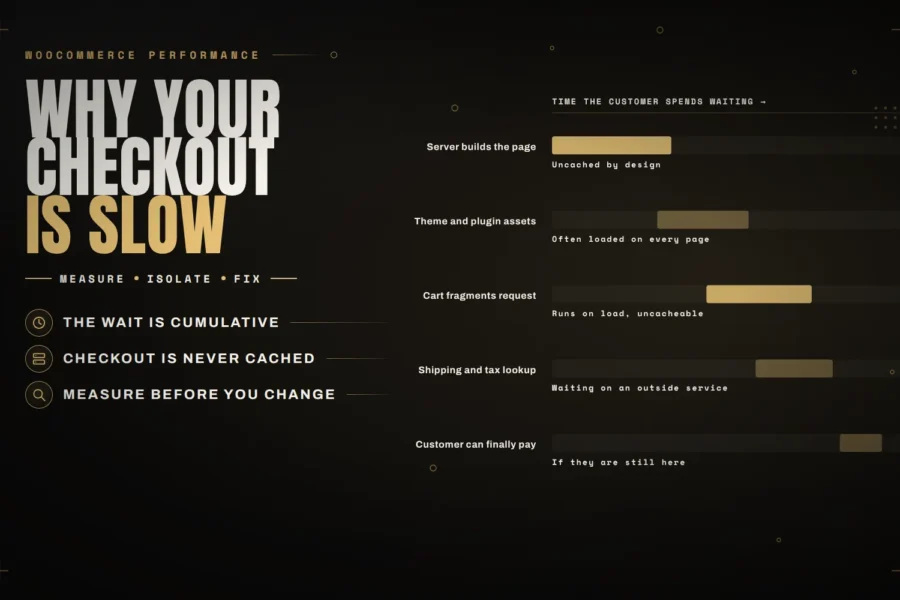
Store speed problems are usually on the pages you cannot cache: the cart, the checkout and the account pages. Those need a look every few months, especially as plugins pile up. My WooCommerce checkout speed guide covers the usual causes.
The page cache also has to leave those pages alone. Most caching plugins exclude the cart and checkout by default, but it is worth confirming after any caching change.
Faster response when something breaks
On a brochure site, a fix by tomorrow is usually fine. On a store, ask how quickly someone will respond if the checkout breaks, and whether that includes evenings and weekends when you take a lot of orders.
Peak season rules
Black Friday, holiday sales and product launches need their own plan:
- Update a week or two before, not on the day. Apply updates early enough to catch problems while traffic is normal.
- Freeze non-urgent changes during the peak. Only security fixes, tested first.
- Run a full test order the day before, with each payment method you offer.
- Check that your hosting can handle the traffic, and that someone is watching during the sale.
If your plan does not mention any of this, ask what happens during your busiest week.
Monthly WooCommerce maintenance checklist
Use this to judge a plan, or to look after a small store yourself.
Every week
- Update plugins, themes and WordPress on staging, place a test order, then update the live store.
- Apply payment and security updates as soon as they are tested.
- Check that backups ran and reached off-site storage.
- Read the uptime and error alerts.
Every month
- Place a real test order on the live store with each payment method, and refund it.
- Check that order, shipping and account emails arrive.
- Look at Scheduled Actions for anything past due or failed.
- Check WooCommerce, Status for outdated template overrides and warnings.
- Review admin and shop manager accounts.
Every quarter
- Restore a backup to staging to prove it works.
- Test speed on the cart and checkout.
- Remove extensions you no longer use.
- Check PHP version support for WooCommerce and your extensions.
What a WooCommerce maintenance plan costs
Store plans cost more than plans for brochure sites, because the testing takes longer and problems are more urgent. Prices vary widely, and the price alone tells you little. Compare what is included: test orders, payment updates, backup frequency and response times.
A useful way to think about it: estimate what an hour of a broken checkout costs your store on a normal day, then on your busiest day. A plan that prevents even one of those hours a year has usually paid for itself.
My maintenance work is billed hourly from $25, or as a $2,500 monthly retainer for stores that need regular development as well as maintenance. Every update is tested on staging, with a test order, before it reaches the live store.
WooCommerce maintenance: quick answers
Is WooCommerce maintenance different from WordPress maintenance?
Yes. It includes everything a WordPress plan does, plus test orders after updates, careful payment gateway updates, order-safe backups, background task checks and faster response when the checkout breaks.
How often should a WooCommerce store be updated?
Check for updates weekly and apply security fixes as soon as they are tested. Test every update on a staging copy with a test order before it goes live, and avoid major updates during your busiest days.
Can I use WooCommerce maintenance mode while updating?
You can, but on a well run store you rarely need to. Updates are tested on staging first, so applying them to the live store takes seconds. Maintenance mode is useful for bigger changes, like a redesign or a migration.
What should I check after a WooCommerce update?
Place a test order with each payment method, check that the order emails arrive, look at WooCommerce, Status for template and compatibility warnings, and check Scheduled Actions for failures.
Do I need a WooCommerce maintenance plan for a small store?
If you are comfortable placing test orders, reading WooCommerce’s status screens and rolling back a broken update, you can follow the checklist above yourself. If any of that sounds unfamiliar, or the store is your main income, a plan is cheaper than a lost weekend of sales.
Let me look after your store
If you would like your WooCommerce store maintained by a developer who tests the checkout before every update reaches it, see WordPress maintenance and care or my WooCommerce development work, or tell me about your store. I usually start with a one-time audit, so you can see what state the store is in first.